
In BricsCAD V26 we can create and edit Dynamic Blocks. BricsCAD® V26 introduces an important milestone for advanced 2D drafting: the ability to create and edit dynamic blocks directly inside BricsCAD (currently available in all countries except the United States). This newsletter walks you through what’s new, how it works, and how these dynamic blocks created or edited in BricsCAD remain fully compatible with AutoCAD®.
Dynamic Blocks Before vs After V26
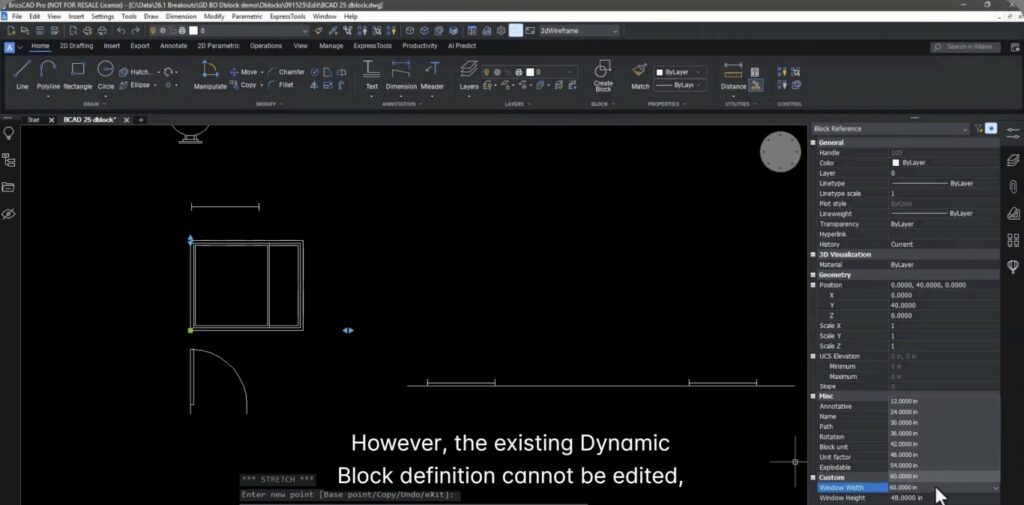
Before V26, BricsCAD users could use dynamic blocks created in AutoCAD – adjust visibility, stretch, flip, or rotate – but could not edit or create new dynamic block definitions.
With BricsCAD V26 (Experimental Mode), users can now:
- Create new dynamic blocks
- Edit existing dynamic block definitions
- Work with stretch actions, visibility states, and block tables
- Exchange drawings seamlessly with AutoCAD (round-trip compatibility)
Experimental Mode: Why It Exists
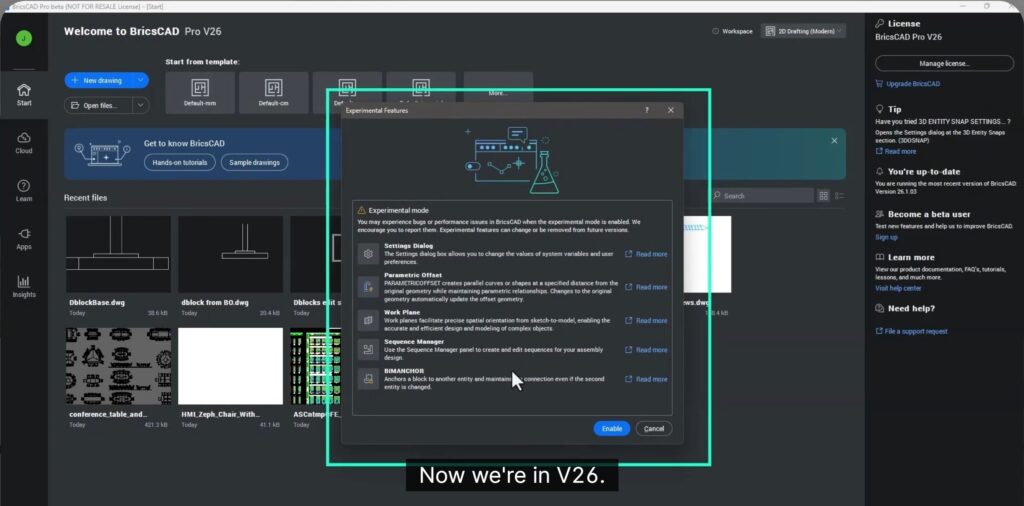
Dynamic block creation and editing is currently delivered through Experimental Mode. While the functionality is fully tested, Bricsys has enabled it early to:
- Provide immediate access to powerful new tools
- Gather real-world feedback from users
- Refine workflows before full production release
Experimental Mode can be enabled:
- From the Start Page
- Via Settings
- Through the command line (Restart required after enabling)
Smarter Block Classification in V26.1
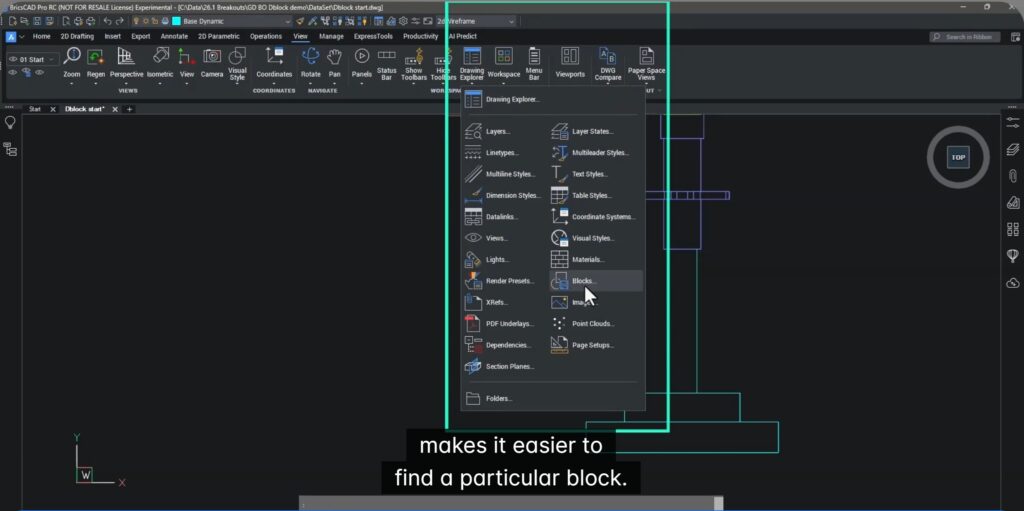
BricsCAD now clearly supports these three kinds of blocks:
- Static blocks – the default how DWG CAD blocks are.
- Parametric blocks – 2D/3D blocks that adapt via constraints (a Bricsys original creation)
- Dynamic blocks – 2D blocks driven by parameters and actions (an Autodesk original creation)
BricsCAD automatically opens the correct editor based on block type, eliminating guesswork.
Creating a Dynamic Block in BricsCAD
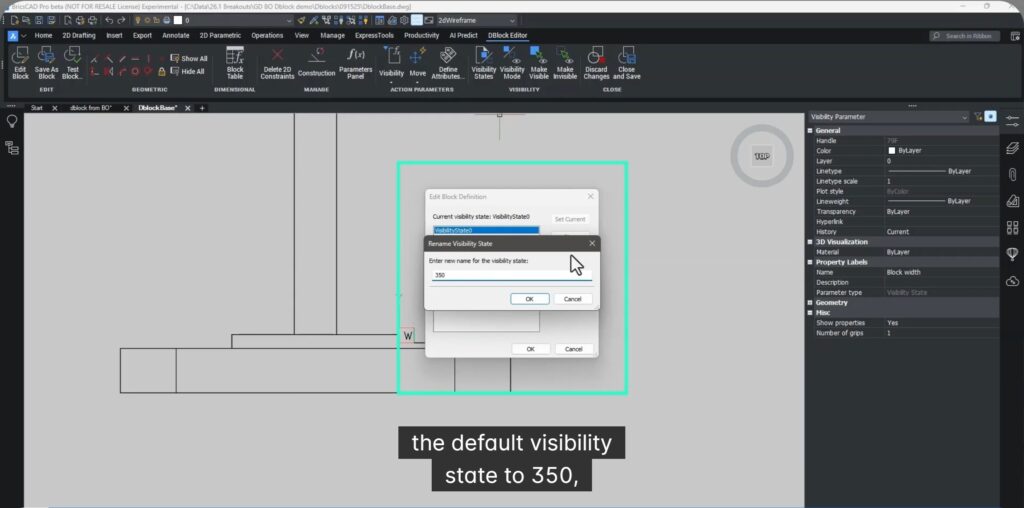
The session demonstrates building a dynamic block from scratch using:
- Visibility States – Switch between predefined geometries (e.g., widths of 250 and 350)
- Stretch Parameters & Actions – Dynamically adjust geometry like height
- Block Tables – Restrict allowed combinations of width and height for better control
A built-in Test Block feature allows live testing during creation, ensuring predictable behavior before finalizing.
Round-Trip Compatibility with AutoCAD
Dynamic blocks created or edited in BricsCAD V26:
- Open correctly in AutoCAD
- Retain visibility states, stretch actions, and block tables
- Support collaboration across mixed CAD environments
This ensures teams using different CAD platforms can work together without loss of intelligence.
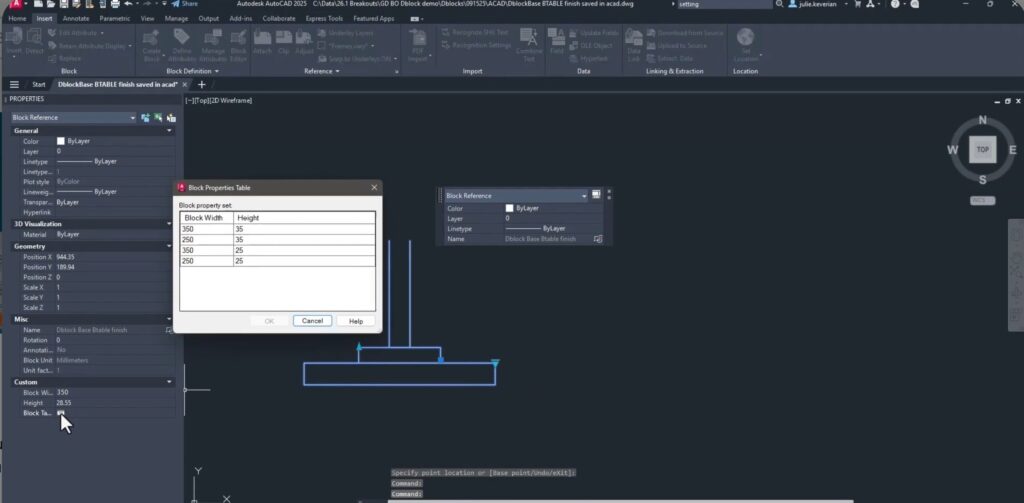
What’s Supported (and What’s Not—Yet)
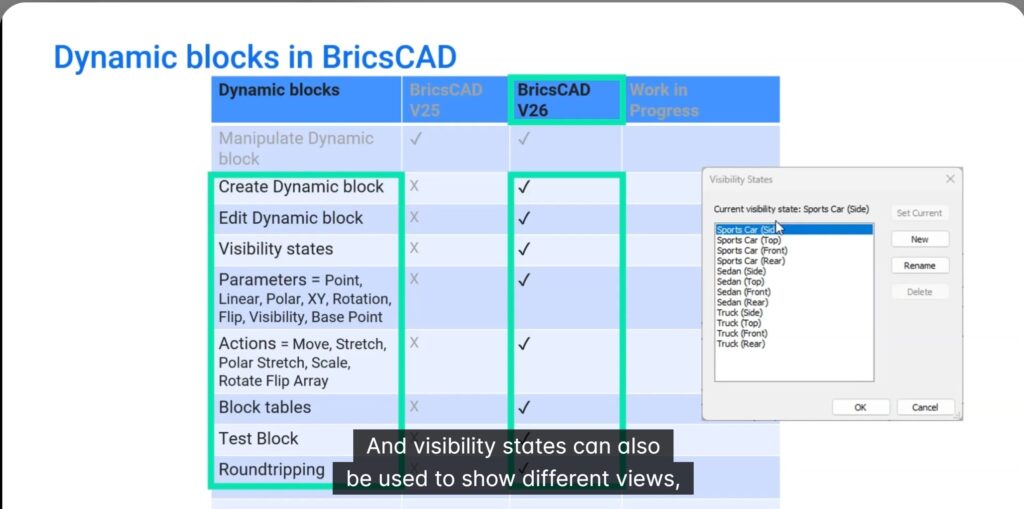
Supported in V26:
- Visibility states
- Stretch, move, flip actions
- Block tables
- Editing existing dynamic blocks
Current limitations:
- Constraint parameters: usable but not editable
- AutoCAD lookup tables: selectable but not editable
- Dynamic block creation/editing not available in the U.S.
These limitations are clearly documented and expected to evolve.
Editing Existing Dynamic Blocks
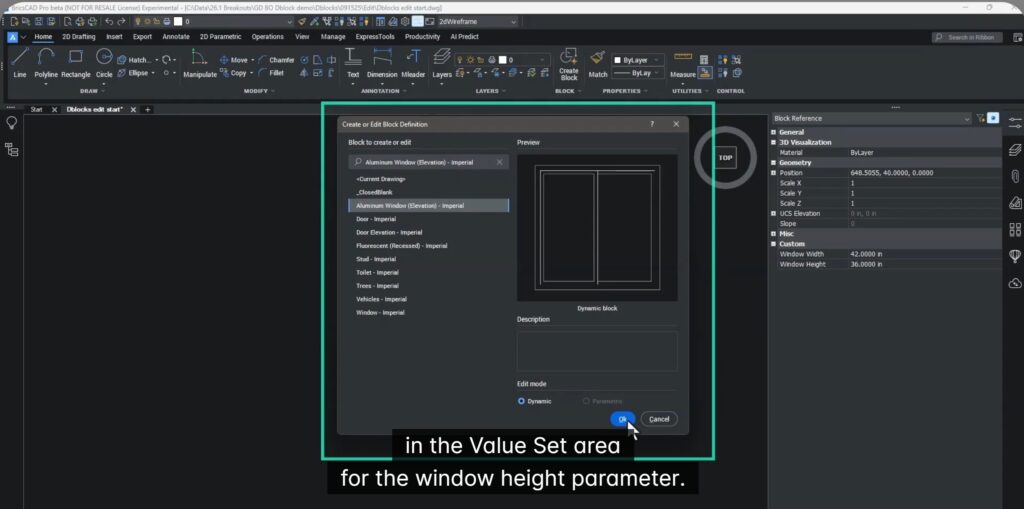
Users can now edit existing dynamic blocks directly in BricsCAD—such as expanding predefined size lists by simply updating parameter value sets. This removes dependency on AutoCAD for routine adjustments.
Getting Help: Submitting Support Requests
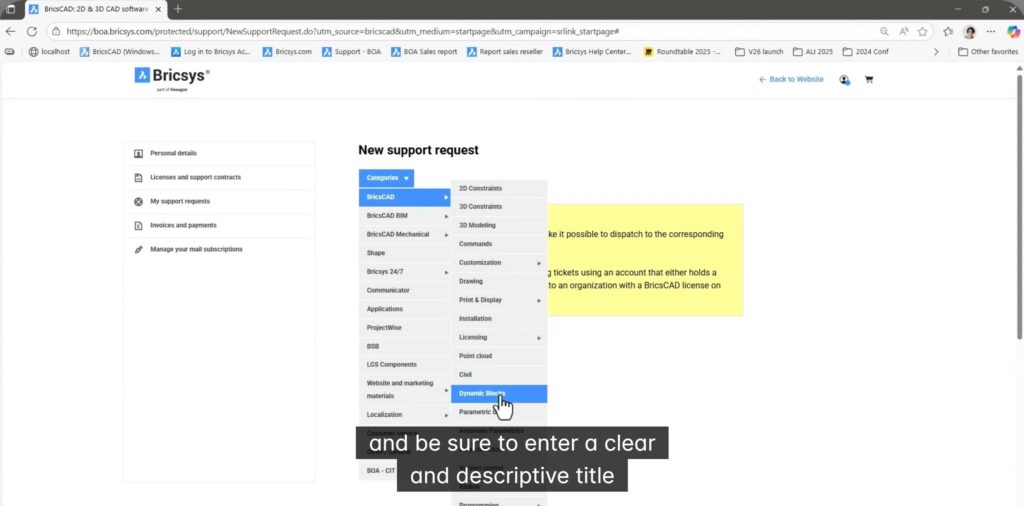
BricsCAD provides a streamlined way to submit support requests directly from the Start Page. Users are encouraged to:
- Select Dynamic Blocks as the category
- Clearly document expected vs actual behavior
- Attach drawings and optional videos
- Mark submissions as shareable if applicable
Why This Matters
Dynamic blocks are foundational to efficient 2D drafting. By enabling native creation and editing in BricsCAD V26, users gain:
- Greater independence from AutoCAD
- Faster design iteration
- Cleaner, more controlled block libraries
- True cross-platform collaboration
In Summary
This video covers:
- The evolution of dynamic blocks in BricsCAD
- Creating dynamic blocks with stretch, visibility, and block tables
- Editing existing dynamic blocks
- Experimental Mode rationale
- AutoCAD compatibility
- How to get support when needed
With these tools, BricsCAD V26 significantly strengthens its position as a serious, production-ready CAD platform for advanced 2D workflows.
Download BricsCAD V26 to know more.