
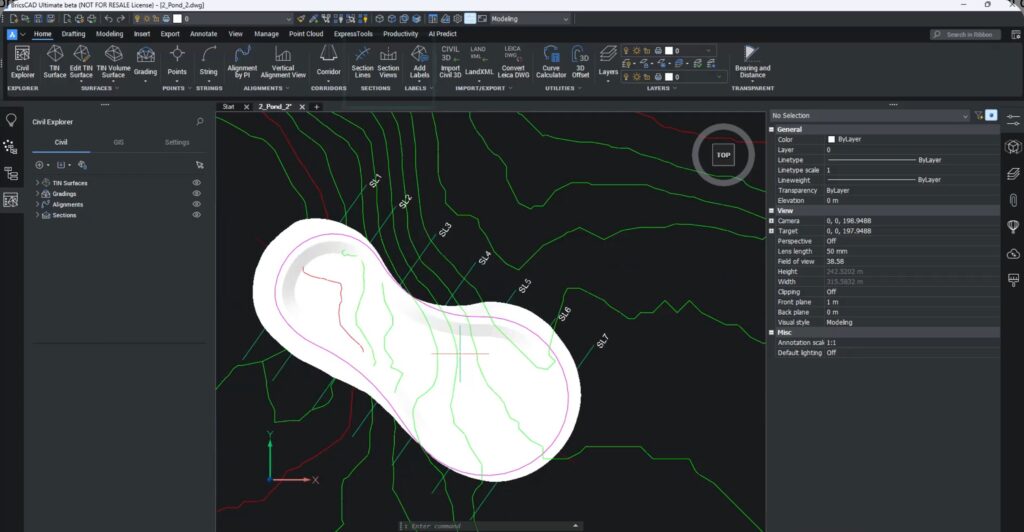
In this blog, we will see how to create civil sections and section views in BricsCAD. BricsCAD V26 introduces several new enhancements in the Civil tools portfolio and this has made such an impact that we are now probably within striking distance to what a typical Civil 3D user uses! Well, maybe not everything that Civil 3D offers, but most of the common features that most Civil 3D users use!
Understanding terrain is the foundation of every successful civil design. With BricsCAD V26, creating accurate, dynamic civil sections and section views is no longer a workaround—it is a built-in, streamlined workflow.
In this newsletter, which is a transcription of the BricsCAD V26 launch breakout session, we demonstrates how BricsCAD V26 makes it easy to cut through your model, visualize terrain interactions, and keep your documentation perfectly in sync as designs evolve.
Define Section Lines Directly from Your Design
Creating sections starts exactly where it should—your geometry. You begin by defining an alignment and then generate section lines at fixed intervals (for example, every 20 meters).
You can control:
- Section width
- Start and end limits
- Layers to be included
Once defined, BricsCAD automatically prepares the data for section creation.
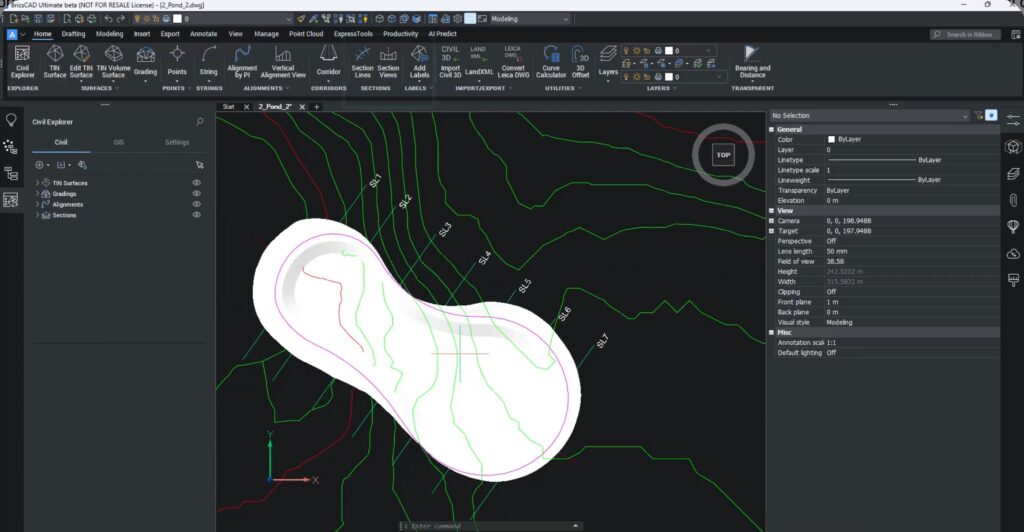
Instantly Generate Clear Section Views
After defining section lines, section views are created automatically—no manual counting, no guesswork.
You can place section views anywhere in the drawing and adjust the annotation scale to improve readability, making them immediately suitable for both analysis and documentation.
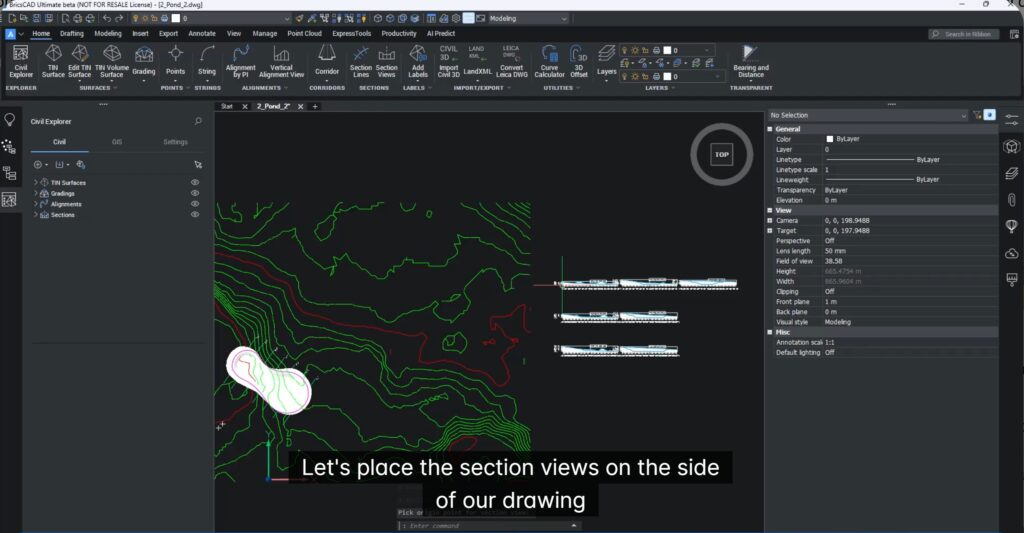
Fully Customizable Section Styles
Every project has different presentation needs—and BricsCAD V26 respects that.
Using Section View Styles, you can:
- Adjust vertical exaggeration
- Control label content and formatting
- Customize colors, grids, and center axes
With just a few clicks, sections become cleaner, clearer, and easier to read.
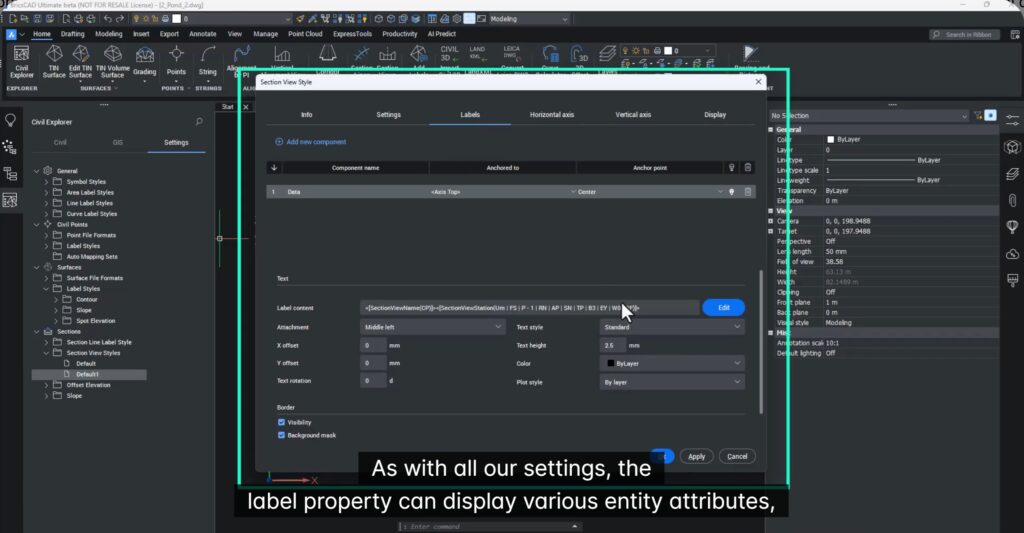
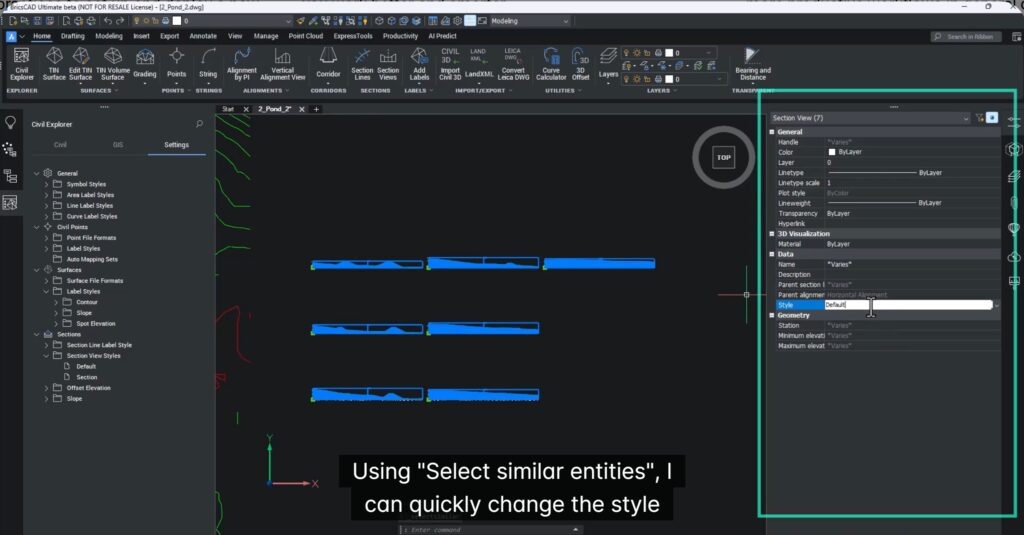
Apply Changes to Multiple Sections Instantly
Need to update all sections at once? No problem.
Using Select Similar, you can switch multiple section views from a default style to a customized section style in a single action—saving time and ensuring consistency across drawings.
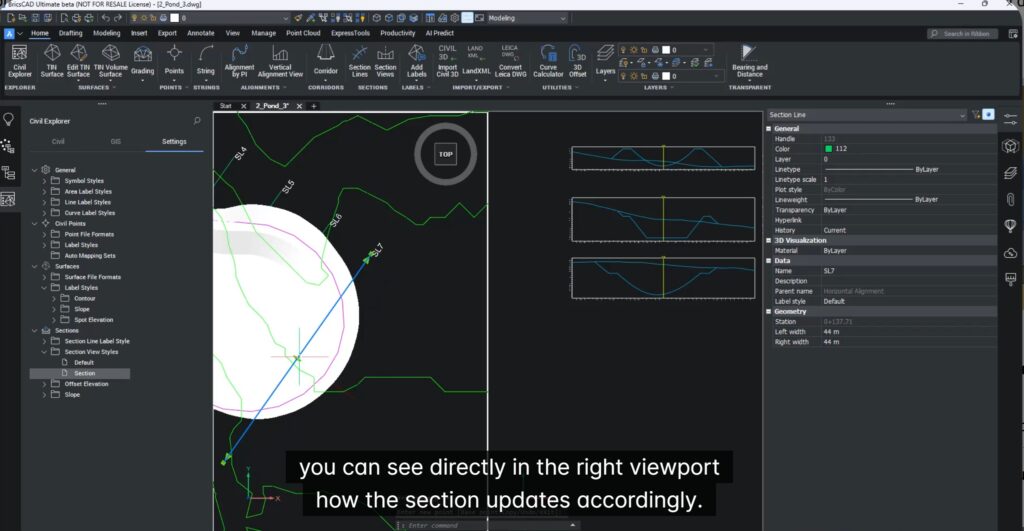
Dynamic Sections That Update as You Design
This is where BricsCAD V26 really shines. By splitting the screen into viewports, you can:
- Drag a section line in plan view
- Instantly see the corresponding section update
No need to recreate sections when designs change—your documentation stays live and accurate.
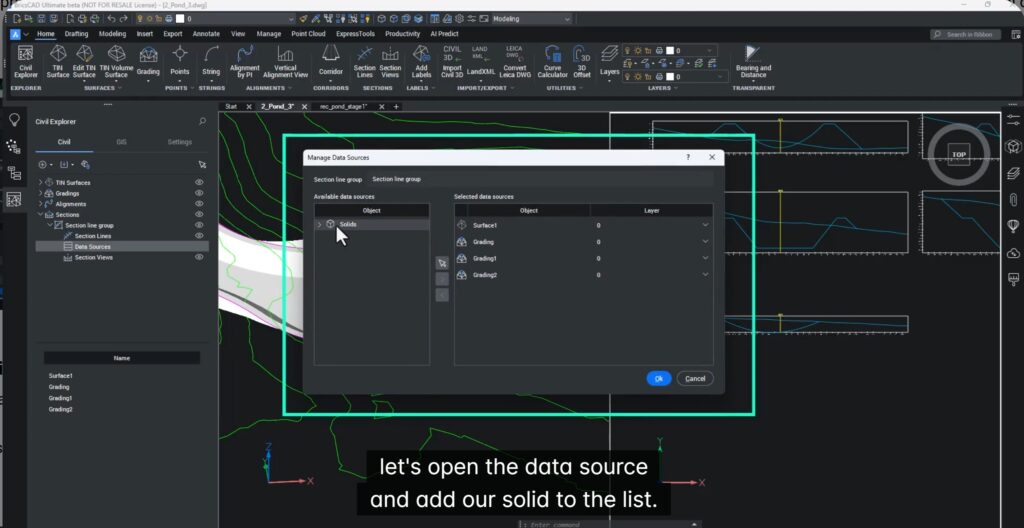
Add New Entities—Even After Sections Are Created
Designs evolve, and BricsCAD keeps up.
You can add new entities (like walls or solids) through the Civil Explorer, and they appear instantly in all intersecting section views. Move the section line, and the new entities update everywhere they should.
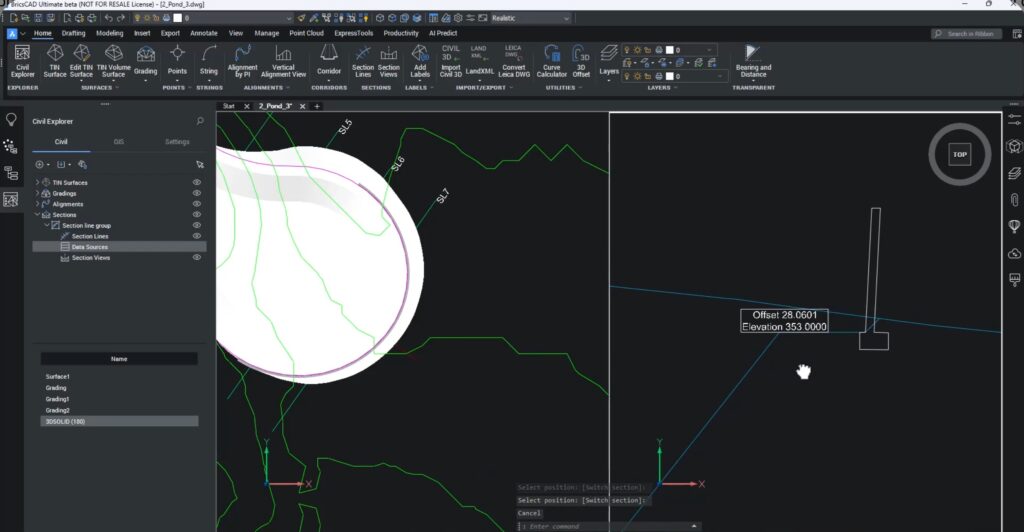
Intelligent Labels for Better Insight
To complete the workflow, BricsCAD V26 allows you to add section labels that display:
- Offset
- Elevation
- Points of interest
This makes sections not just visual tools, but precise sources of design intelligence.
From Analysis to Documentation—Faster and Smarter
With BricsCAD V26, you can move seamlessly from terrain analysis to clear, accurate documentation:
- Start from a surface
- Create and style sections
- Add entities later
- Keep everything dynamic and up to date
The result? More confidence, fewer redraws, and faster delivery.
Explore More in BricsCAD V26
Scan the QR code on the V26 webpage to experience the latest and greatest tools BricsCAD has to offer.