
In this blog let us see what BricsCAD Pro offers for the point cloud data management workflow. Point clouds can either be incredibly powerful… or incredibly painful. With BricsCAD V26.1, the Bricsys team has made some thoughtful, workflow-driven improvements that make working with point cloud data simpler, faster, and more intuitive—especially for civil, survey, and modeling workflows.
Here’s a quick overview of what’s new and why it matters.
A More Intuitive Point Cloud Manager
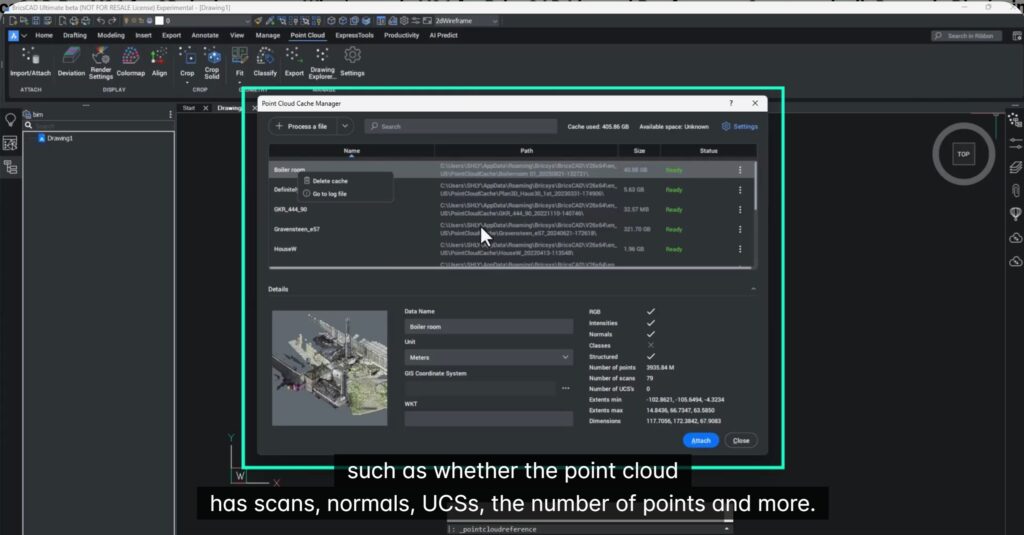
BricsCAD V26.1 introduces a redesigned Point Cloud Manager that gives you immediate insight into your data before you even start working.
You can now see:
- Thumbnails of point clouds
- Rich metadata such as scans, normals, UCSs, and number of points
- Editable metadata (for example, renaming scans for easier identification)
This makes managing multiple point clouds far more transparent—no more guesswork or trial-and-error.
Indeed, I know the pains of those working with reams of point cloud data, and it is a nightmare to know which file contains what! More than working with the data, knowing what is where if often a significant time-consuming activity.
Improved Handling of Geographic Point Clouds
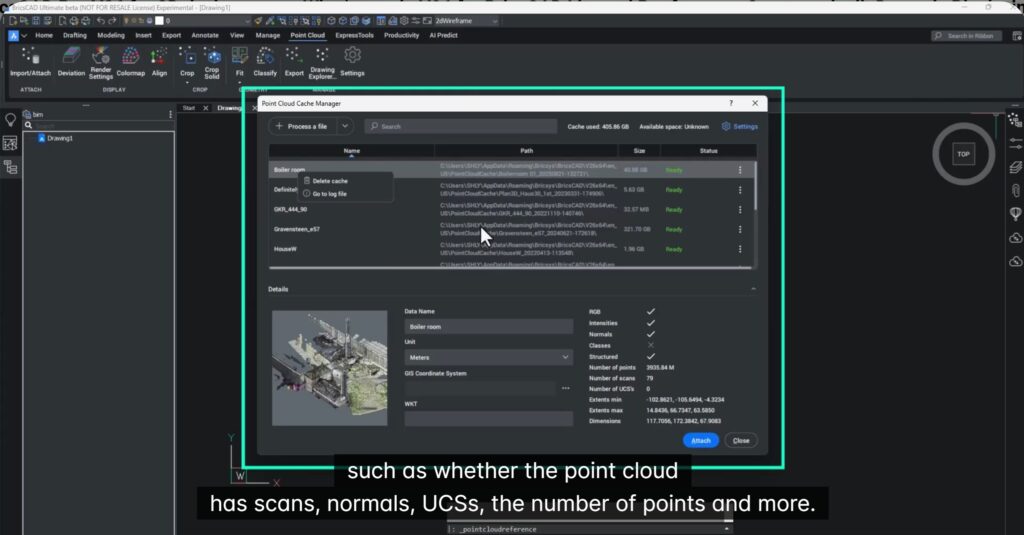
If you work with outdoor LiDAR scans, you’ll appreciate the improved handling of geographic coordinates.
When a point cloud includes geographic data:
- BricsCAD detects and displays it automatically. This is a great productivity improvement because the info is right there, your BricsCAD earlier did not pull it out for you. But now it does, and spares you from the hassle of guessing the coordinate system.
- You are prompted to use it during attachment
- If accepted, it overrides the drawing’s coordinate system (so workflow planning matters!)
Once attached, you can seamlessly:
- Add online maps (for example, from ESRI servers)
- Align point clouds with real-world geography without manual setup
From Point Cloud to Civil Workflows (TIN Made Easy)
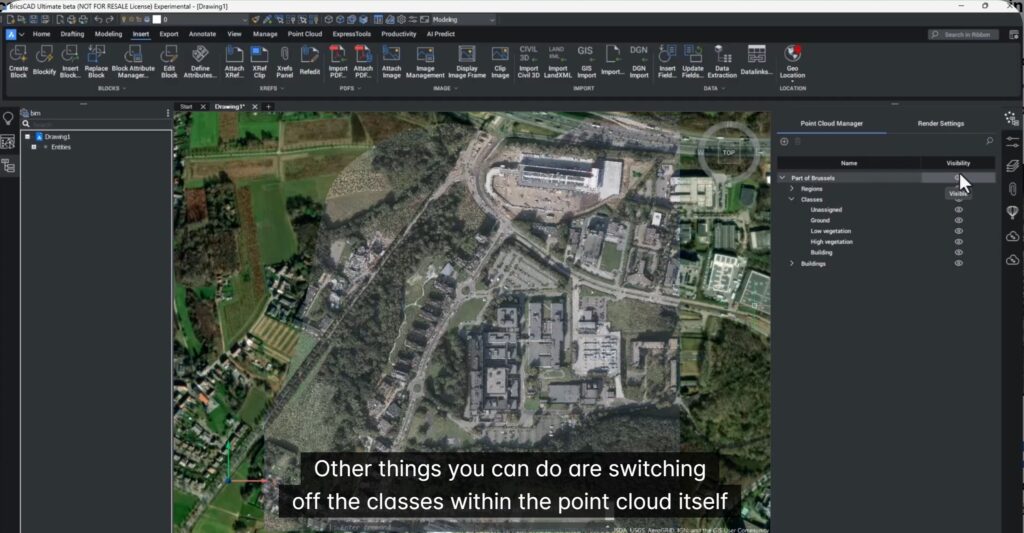
BricsCAD V26.1 makes it easier to convert point cloud data into useable civil geometry.
You can:
- Filter point classes (for example, isolate ground points)
- Generate a TIN surface directly from the point cloud
- Control simplification settings via the command line
The result? A TIN surface that behaves like any other surface in your civil workflow.
Try It Yourself: Sample Datasets Included
Want to test these workflows yourself?
- Civil/LiDAR data:
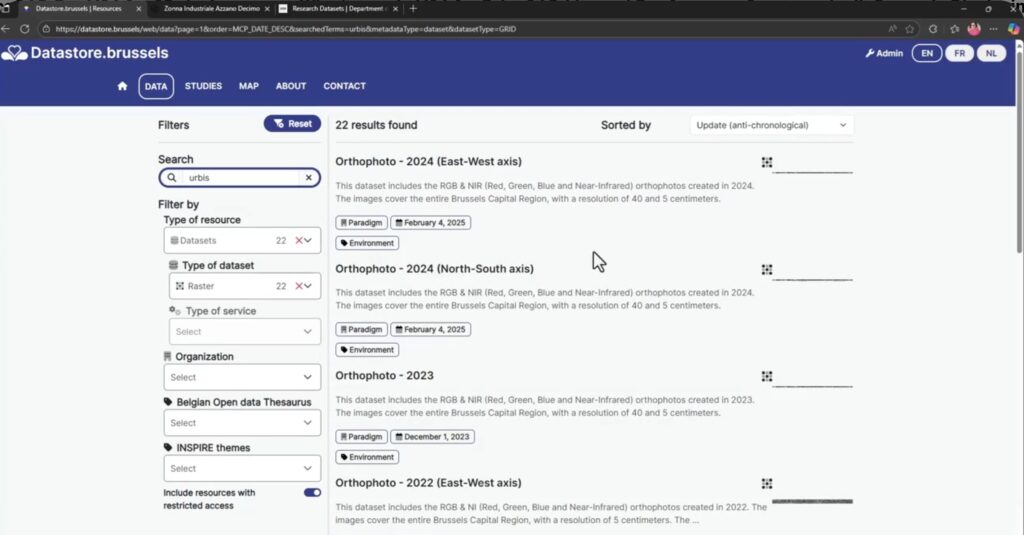
- Datastore Brussels → search for UrBIS LiDAR
- Visualization & rendering examples:
- University of Zurich datasets → Penthouse dataset
These datasets are free and ideal for hands-on exploration.
Major Improvements to Point Cloud Visualization
Visualization controls in V26.1 have been redesigned for performance and clarity.
New capabilities include:
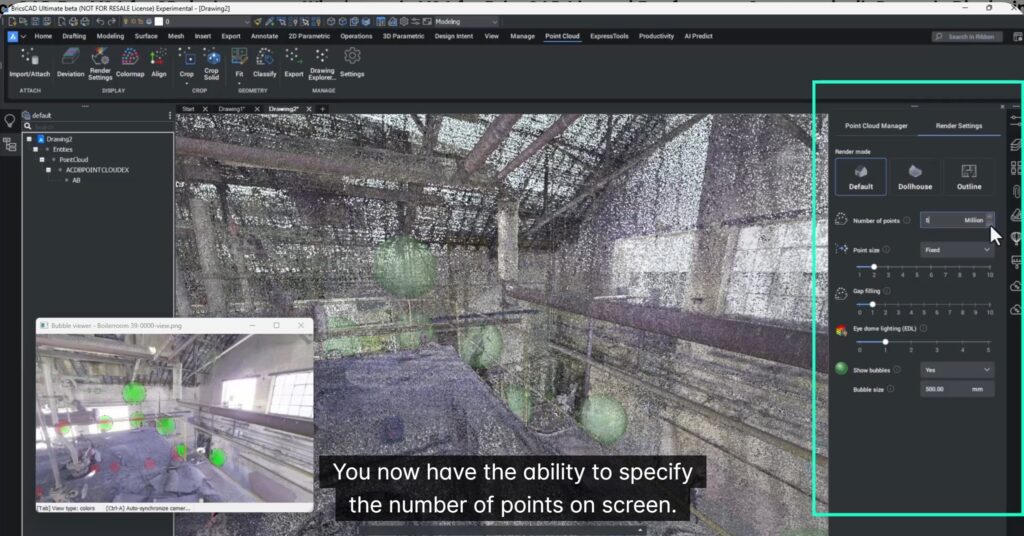
- Explicit control over the number of points displayed on screen
- Incremental adjustment (in steps of 5 million points)
- Lightweight navigation during setup, with high-density visuals when needed.
This is especially useful when working with large datasets—smooth navigation first, visual fidelity later.
Dollhouse, Outline & X-Ray Render Modes (Yes, They’re That Useful)
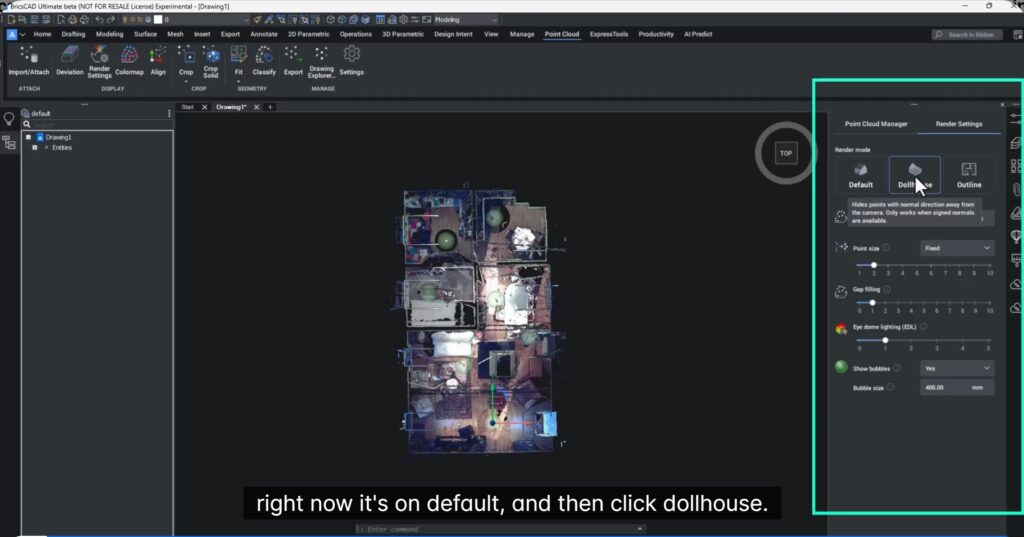
The updated render modes make it much easier to inspect interiors:
- Dollhouse mode – removes the roof visually
- Outline mode – removes both roof and floor
- X-ray options for deeper inspection
These modes intelligently hide or show points based on surface normals, and work best in top views.
Faster, Smarter LGSX Workflows
Working with Leica LGSX data is now significantly smoother.
What’s improved:
- Point clouds appear almost immediately
- Visual optimization continues in the background
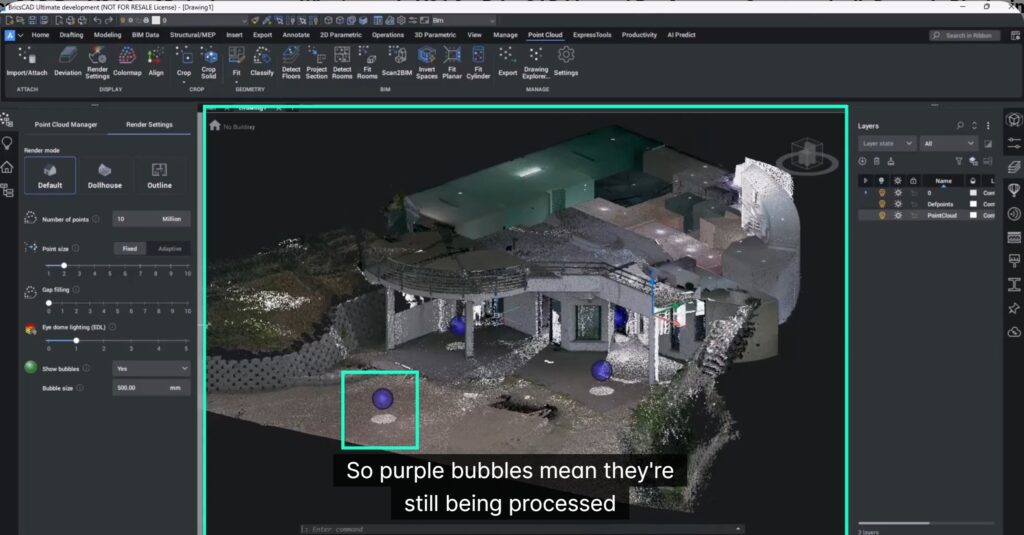
- Bubble status indicators:
- Purple = still processing
- Green = fully processed
You can start working right away—no more waiting for everything to finish before doing anything useful.
Better Support for Multiple UCS in LGSX Data
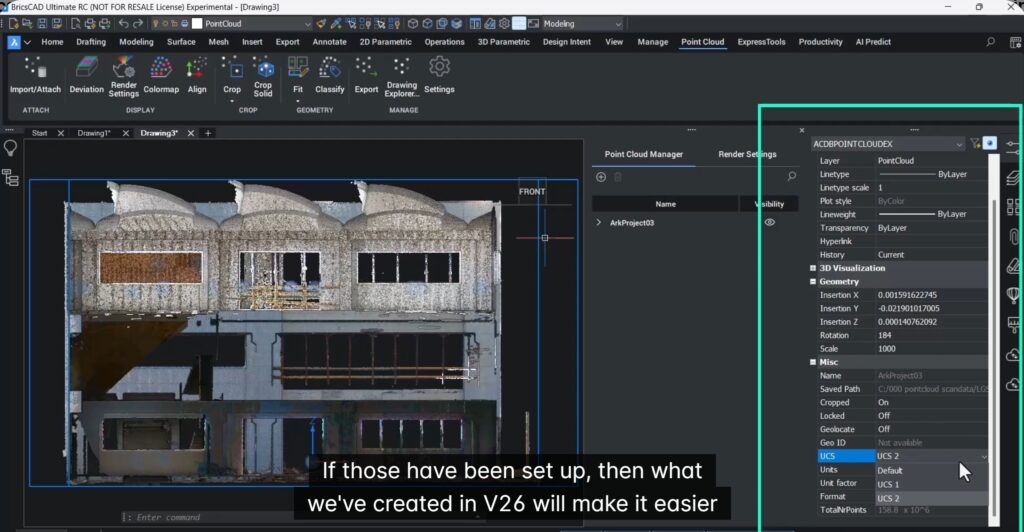
If your scans include multiple User Coordinate Systems (UCS) (defined in Leica software), BricsCAD V26.1 now handles them more intelligently.
This improves:
- Accuracy of measurements
- Modeling of complex geometry (multi-floor spaces, sloped walls)
- Overall design and modeling efficiency.
In short: less fighting the data, more designing.
Explore More in BricsCAD V26
These point cloud improvements are just one part of what’s new in BricsCAD V26.
Scan the QR code on the V26 webpage to explore more enhancements across drafting, modeling, and performance.

Final thought
BricsCAD V26.1 doesn’t try to “wow” you with flashy features—it respects your time. And for anyone working seriously with point clouds, that’s a bigger upgrade than it sounds.