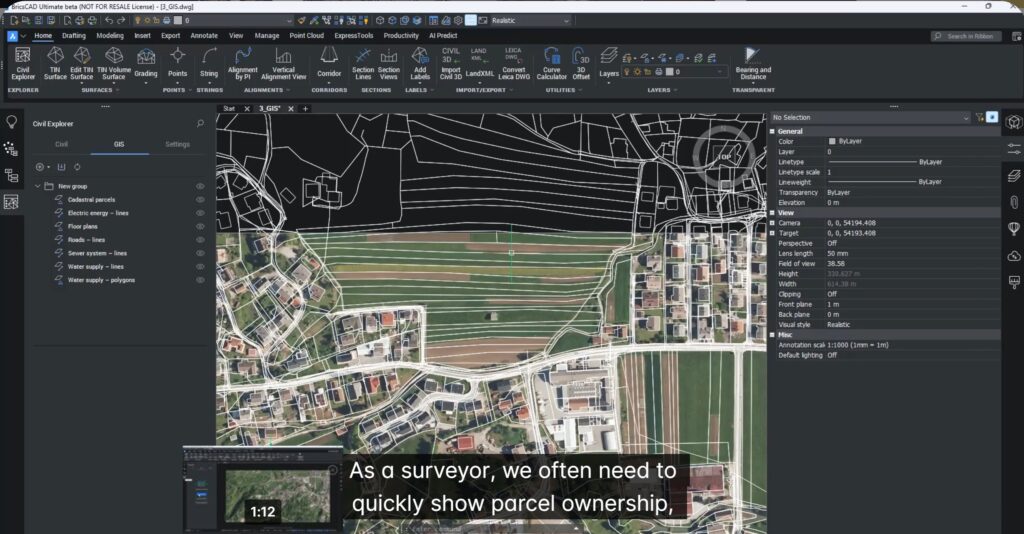
In this blog we will talk about how to create labels for GIS data in BricsCAD V26. This is part of the sprint where we discover new features in BricsCAD Pro Civil which are shaping up quickly as a Civil3D replacement.
If you work with GIS data, you know the frustration – beautiful geometry, but all the useful information is buried inside tables and databases.
With BricsCAD V26, that changes.
You can now display GIS attributes directly in your drawings — automatically, consistently, and without manual typing, using smart, attribute-driven labels for lines, curves, and areas.
This means your maps don’t just look right…they communicate clearly.
What this breakout session covers
This session demonstrates how BricsCAD V26 lets you:
- Create and edit label styles
- Link those labels directly to GIS attributes
- Apply them to parcels, utilities, and infrastructure
- Keep everything automatically updated
- No spreadsheets.
- No retyping.
- No errors creeping in
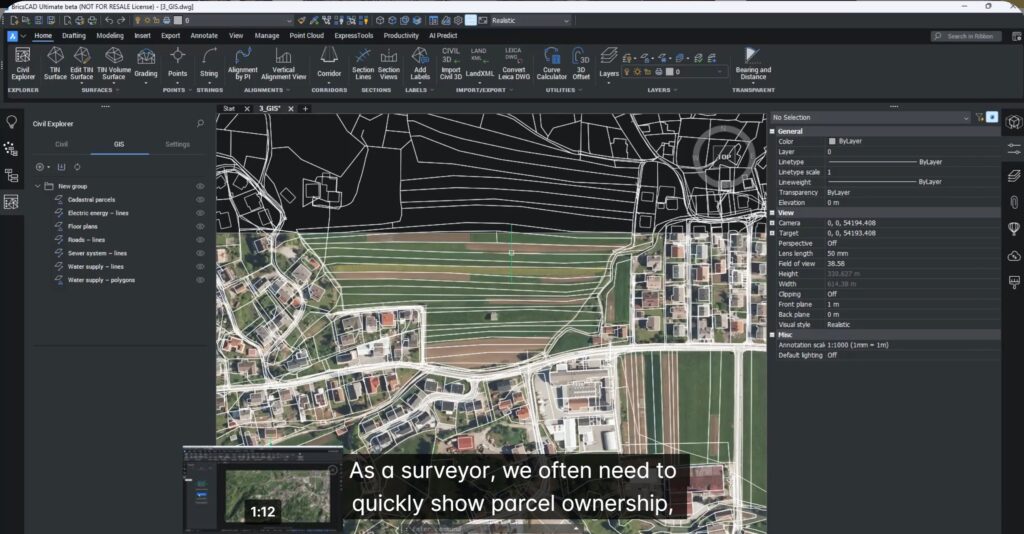
Turning GIS Data into Real Information
Imagine you receive a GIS dataset from a municipality containing:
- Land parcels
- Sewer networks
- Utility lines
Right now, all that valuable information is locked inside attribute tables. The geometry looks right—but the drawing tells you nothing.
With BricsCAD labels linked to GIS attributes:
- Parcels can show owner, parcel ID, or land use
- Pipes can show diameter, material, and flow direction
- Buildings can display unique IDs
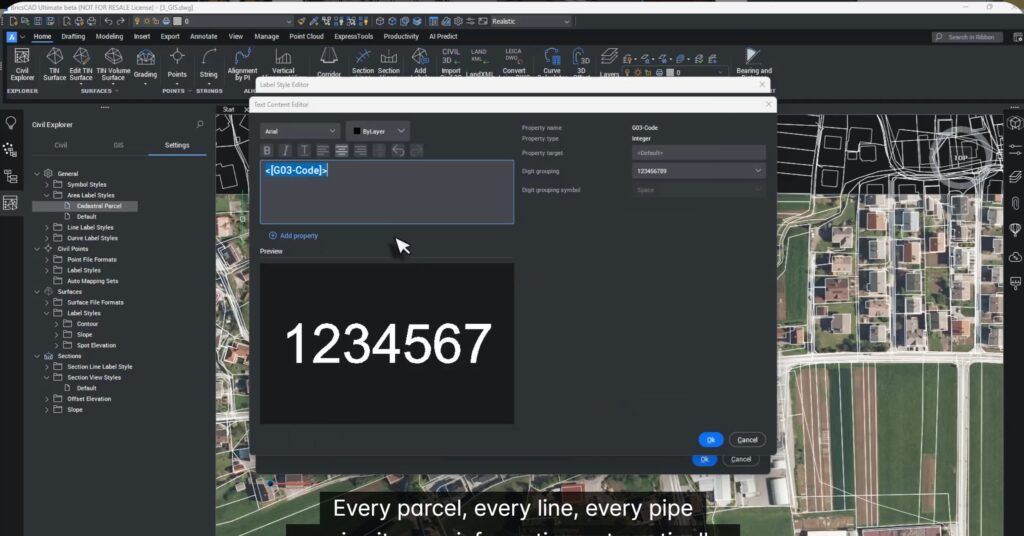
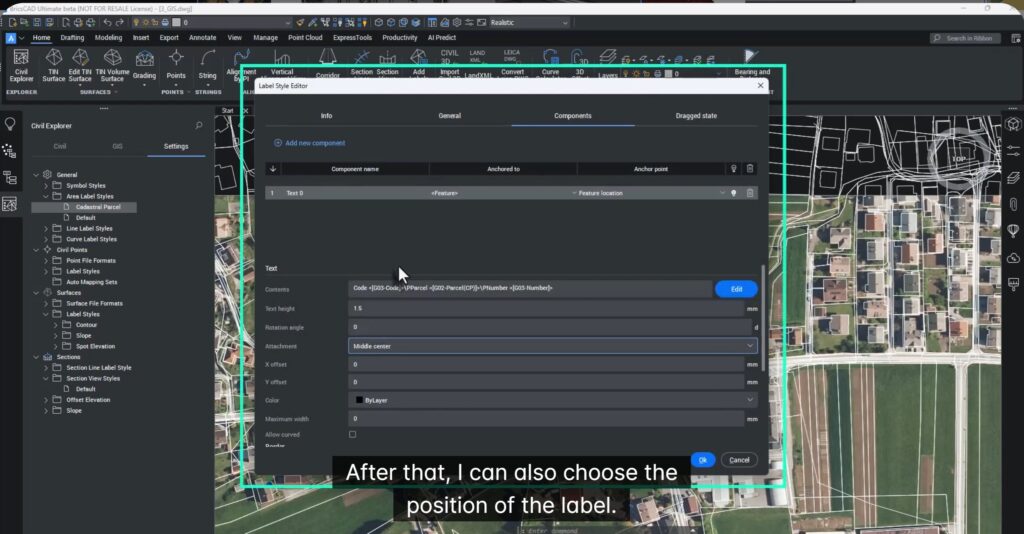
Creating Attribute-Driven Parcel Labels
Using the Civil Explorer, you can create a new Area Label Style and connect it directly to GIS attributes like:
- Parcel number
- Code
- Ownership
Once applied, each polygon automatically displays its own data—no typing required.
Labeling Buildings Faster with Quick Select
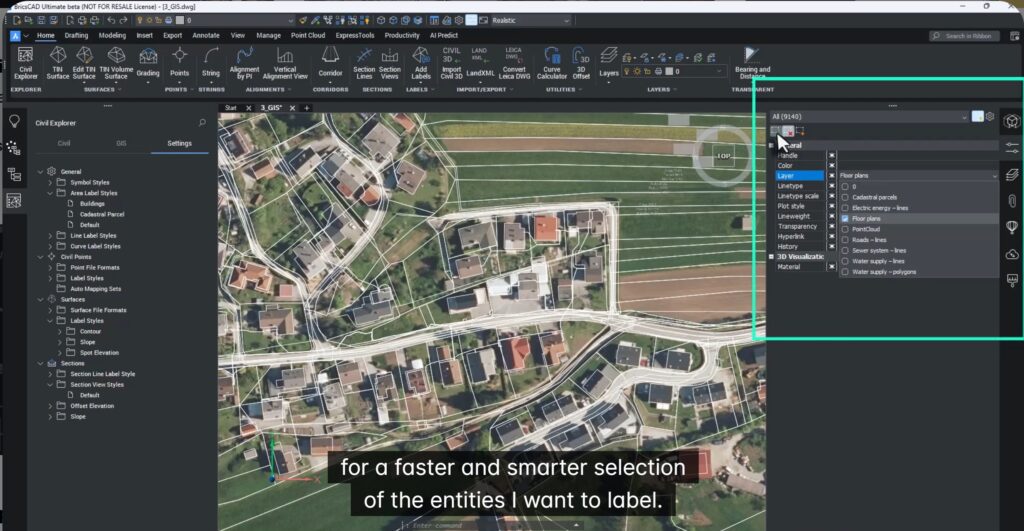
BricsCAD’s new Quick Select lets you rapidly choose only the entities you want—such as buildings—and apply a custom label style to them.
For example:
- Display building ID
- Display usage
- Display any GIS attribute
Smart Utility Labels with Flow Direction
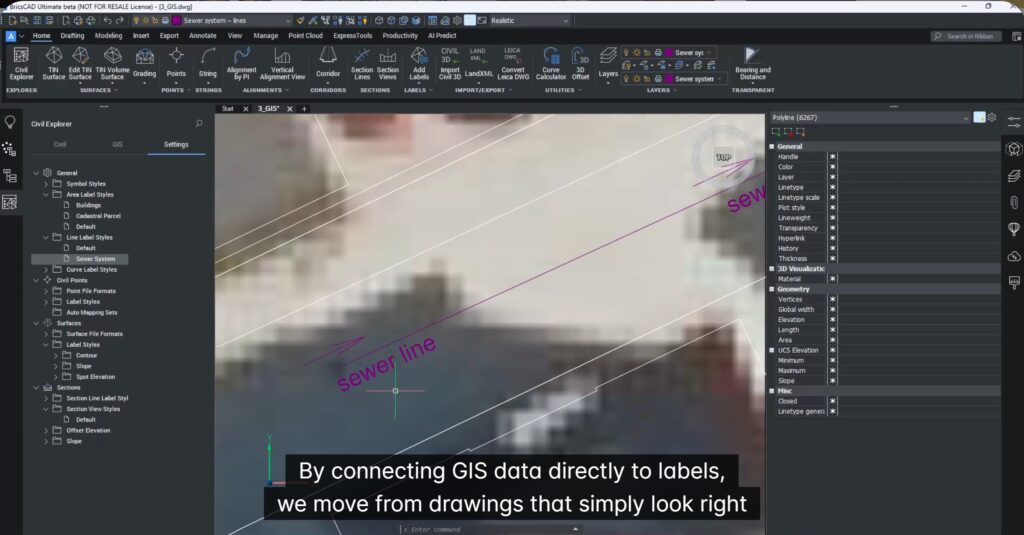
For utilities like sewers and pipelines, labels can include:
- Description
- Material
- Diameter
- Flow direction arrows
Once a style is defined, it can be applied across an entire utility layer in seconds.
Why This Changes Everything
By linking GIS data directly to labels, BricsCAD V26 delivers:
- Zero manual typing – All data comes from GIS attributes
- Standardized labels – Every map follows the same rules
- Richer information – Multiple attributes in a single label
- Fewer errors – No copy-paste mistakes
- Faster delivery – Label entire datasets in seconds
Your drawings become, readable, reliable, and decision-ready.
Who is this best suited for?
- Land surveyors
- Urban planners
- GIS teams
- Infrastructure engineers
- Municipal consultants
If you produce GIS-based drawings, this is a massive productivity boost.
Try It Yourself
The best way to appreciate smart GIS labeling is to experience it.
Download BricsCAD V26, load your own GIS data, and see how your drawings instantly become clear, informative, and professional.
And remember…life is too short for manual labeling.