
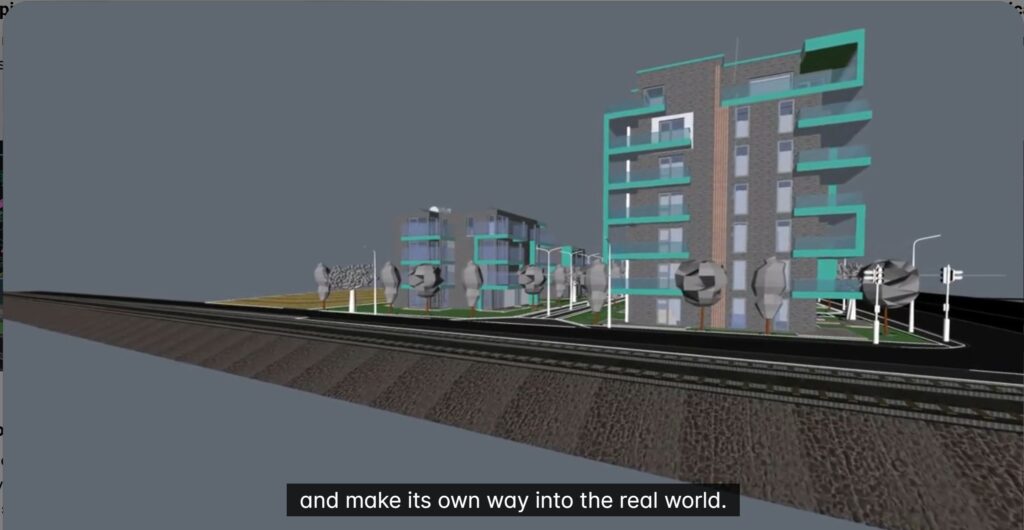
In this blog, we will see how we can generate civil points fast in BricsCAD V26.
Creating civil points is a critical step in every civil and surveying workflow. Yet, it is often one of the most time-consuming and error-prone tasks when done manually. In this breakout session, Rita Carone demonstrates how BricsCAD enables fast, flexible, and highly accurate civil points creation—no matter how your design is structured.
This session focuses on one clear goal: helping teams move faster from design to field execution.
Why Civil Points Matter
Every design eventually leaves the screen and enters the real world.
This could be:
- staking a new road,
- marking building boundaries, or
- placing street furniture on site
For all of the above, civil points are the foundation of accurate field execution.
Manually placing hundreds of points is not just slow—it increases the risk of mistakes. BricsCAD addresses this problem by automating civil point creation directly from design geometry.
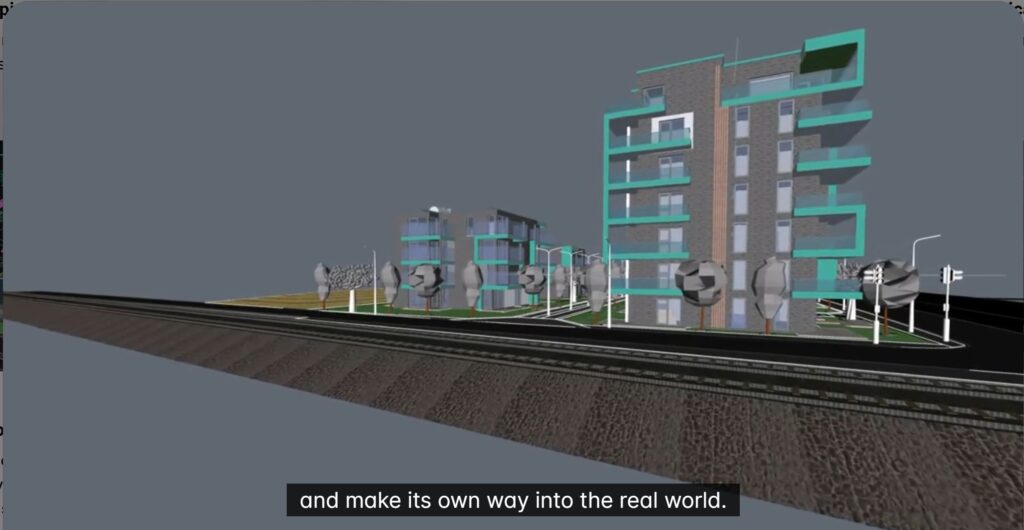
Multiple Ways to Create Civil Points — Built for Real Projects
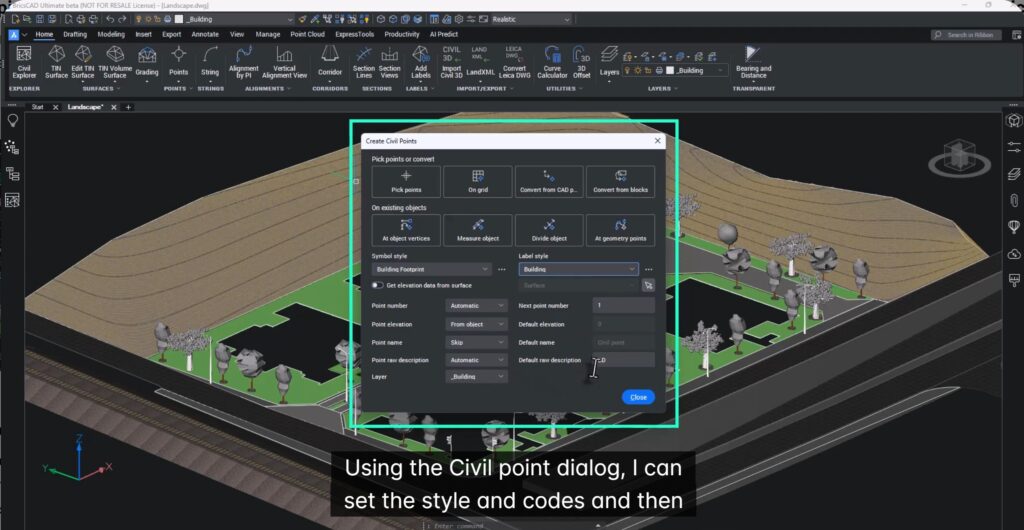
BricsCAD adapts to different project needs by offering several fast methods to generate civil points:
- Create points at critical locations on existing geometry
- Convert existing blocks (trees, lamp posts, furniture)
- Generate points on a defined grid
- Convert plain CAD points into intelligent civil points
No matter how your drawing is built, BricsCAD provides a reliable way to convert design information into usable civil data.
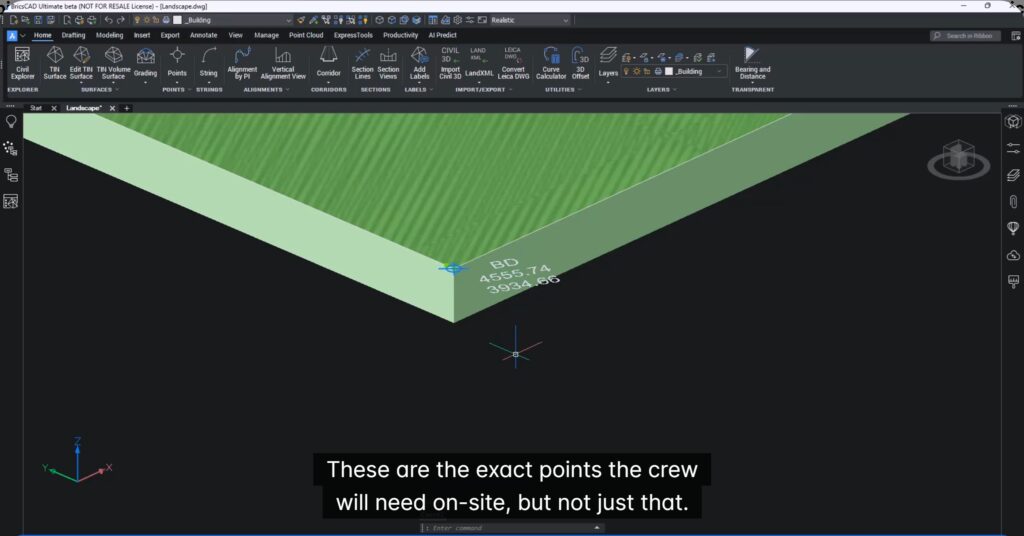
Building Footprints → Instant Staking Points
For building layouts, civil points can be created automatically at:
- corners,
- intersections,
- and other key locations
By selecting building footprints, BricsCAD instantly generates the exact points required by field crews—without manual picking or cleanup.
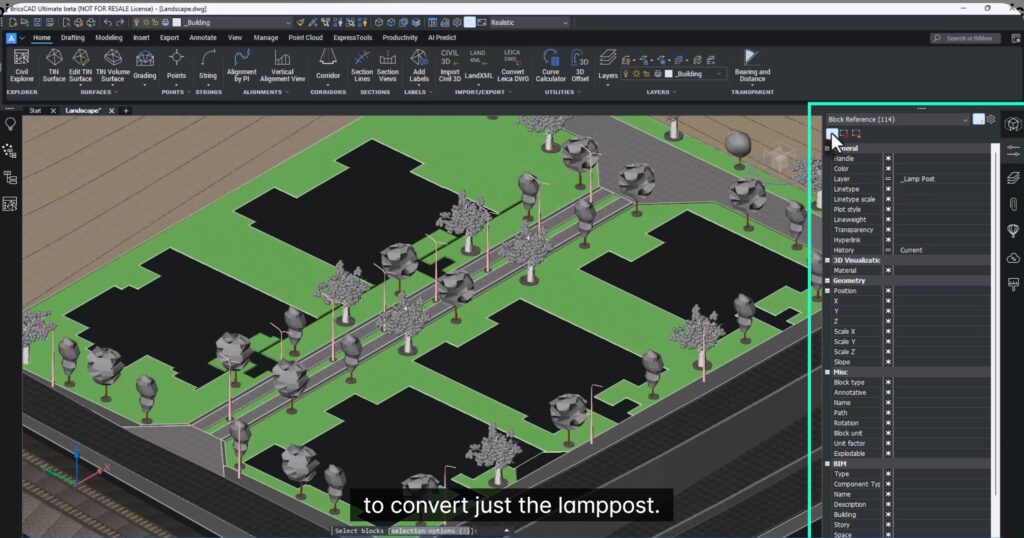
Convert Blocks with Smart Codes
Using Convert from Blocks and Quick Select, specific objects can be targeted:
For example,
- only lamp posts,
- only trees,
- or any selected object type.
Each converted point can be assigned a code, which becomes extremely valuable during export and on-site operations. These codes ensure clarity and sequencing for field teams.
Grid Points for Terrain & Cut/Fill Analysis
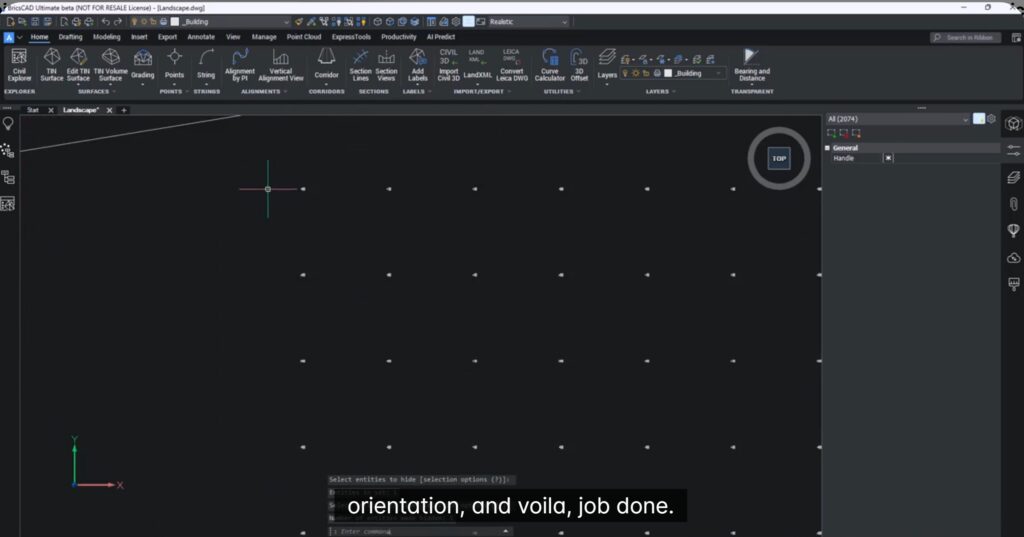
For future development or grading projects, BricsCAD can generate a grid of elevation points across a surface.
Simply select the surface, define spacing and orientation, and BricsCAD creates a clean, evenly distributed set of civil points—ideal for:
- terrain analysis,
- cut and fill calculations,
- and site staking.
From Drawing to Field — Export-Ready Data
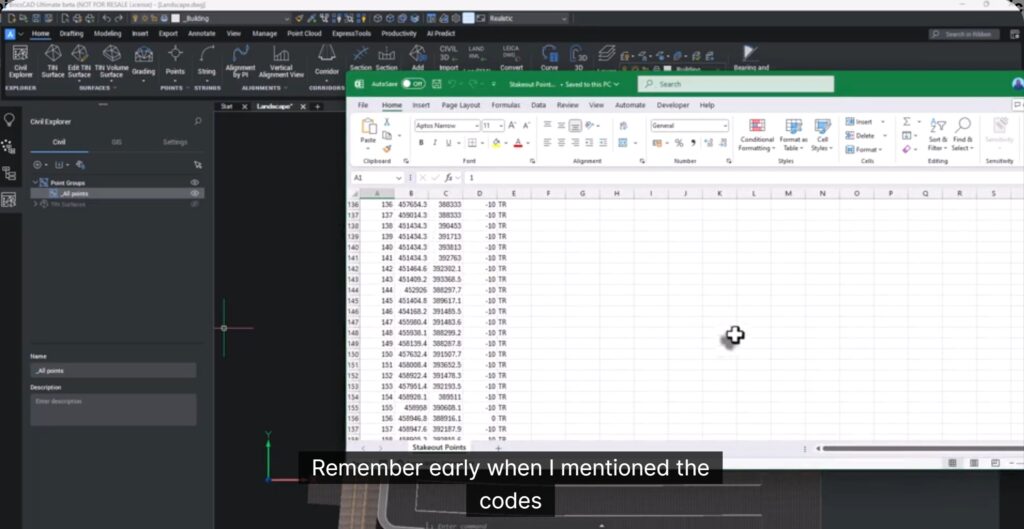
These civil points aren’t just visual markers. They are intelligent, data-rich points that are ready for export.
With a single step, points can be exported to CSV format and imported directly into field handsets. Because codes are already assigned, field crews can easily prioritize tasks—whether staking buildings, trees, or street furniture first.
Key Takeaways
- Generate hundreds of civil points in seconds
- Points stay linked to design geometry
- Assign meaningful codes for field clarity
- Export clean, structured data for staking
- Eliminate repetitive manual work and reduce errors
BricsCAD doesn’t just help you create civil points—it streamlines the entire workflow from design to execution.
Try It Yourself
If speed, accuracy, and smooth design-to-field handoff matter to your projects, it’s time to experience these workflows first-hand. Download BricsCAD, explore the civil point tools, and see how quickly your designs turn into field-ready data. And don’t miss the other breakout sessions—each packed with practical workflows, productivity tips, and real-world time savers.