
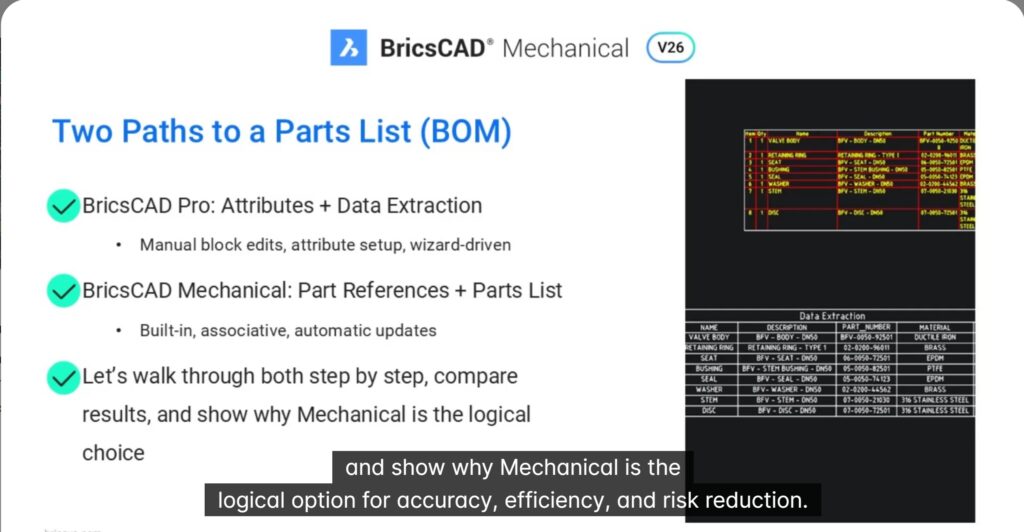
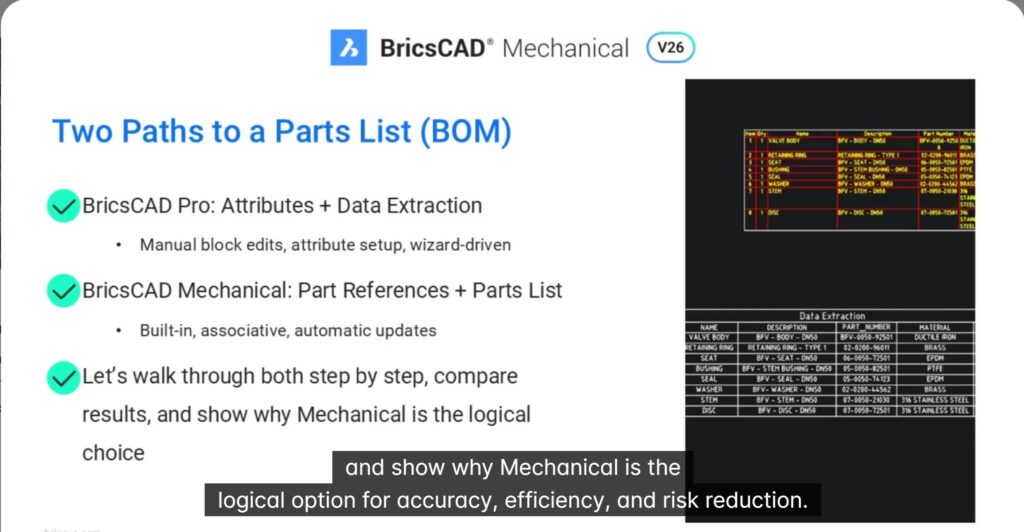
In this blog we will see how associative part Lists in BricsCAD Mechanical outperform BricsCAD Pro’s data extraction in speed and accuracy.
Creating accurate parts lists is critical for manufacturing workflows—but the way you build them can dramatically impact speed, accuracy, and long-term maintainability.
In this session, two approaches can be compared:
- attribute-based data extraction in BricsCAD Pro
- associative parts lists in BricsCAD Mechanical
Using a valve assembly as an example, the session walks through both workflows step-by-step and clearly shows why BricsCAD Mechanical is the logical choice for manufacturers working with assemblies.
Two Ways to Build a Parts List in BricsCAD
BricsCAD offers two fundamentally different approaches:
1. Attributes + Data Extraction (BricsCAD Pro) : This method relies on block attributes and the DATAEXTRACTION wizard to compile a parts list.
2. Part References + Associative Parts Lists (BricsCAD Mechanical) : This method uses dedicated mechanical tools designed specifically for parts management and documentation.
Workflow in BricsCAD Pro: Manual and Repetitive
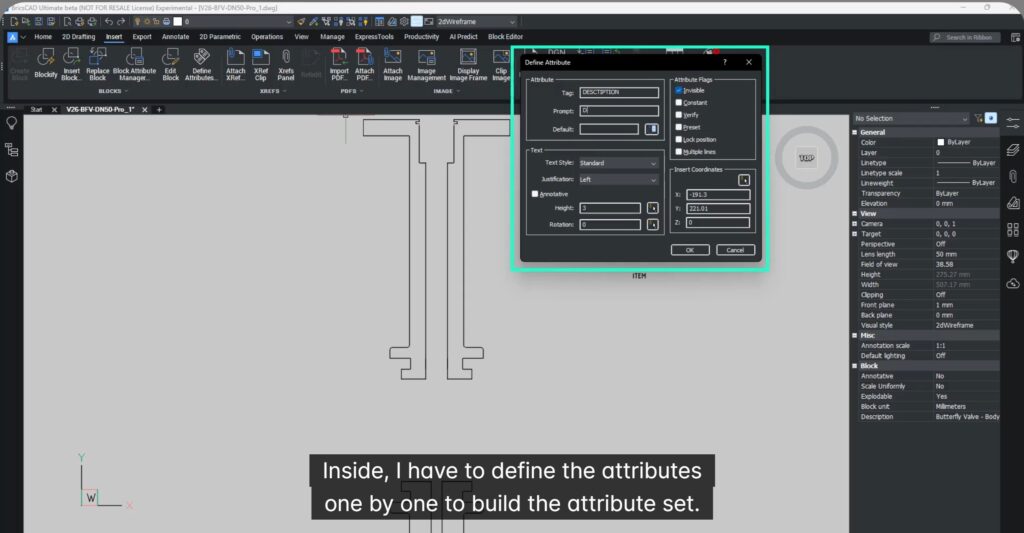
In BricsCAD Pro, setting up a parts list begins inside the Block Editor:
- Each block must be opened individually
- Attributes are defined manually, one by one
- Attribute sets can be copied, but each block still needs editing
- Attribute values must be filled using the Attribute Editor for every block instance
Attribute synchronization (ATTSYNC) helps only when blocks are repeated—not when assemblies contain unique parts.
Building the Table with Data Extraction
Once attributes are set:
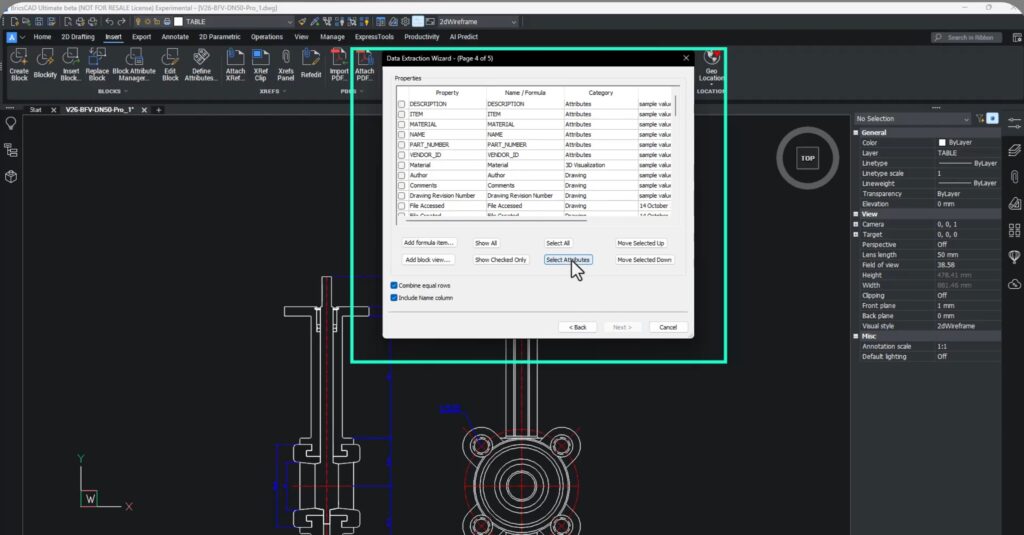
- The DATAEXTRACTION wizard is used to create the table
- Multiple steps are required to select blocks, attributes, and formatting
- A data link must be enabled to keep the table connected.
Updating values is possible, but:
- new parts
- new attributes
- require rerunning the entire extraction wizard
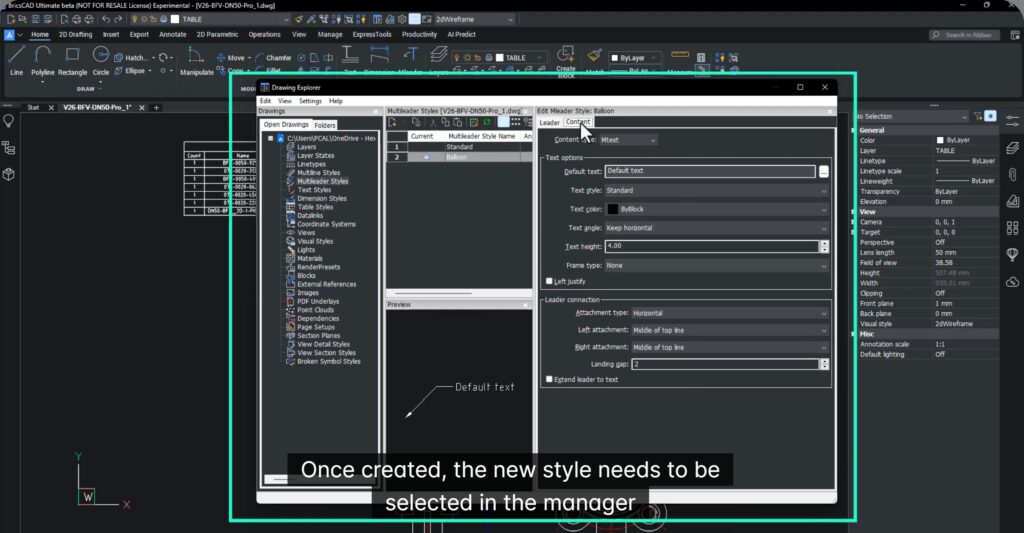
Balloons in Pro: No Association
Creating balloons in Pro involves:
- creating a custom MLeader style
- placing balloons manually
- numbering them manually
There is no link between balloons and the parts list, meaning every change increases the risk of inconsistency.
Workflow in BricsCAD Mechanical: Built for Assemblies
In BricsCAD Mechanical, the same task becomes a streamlined, associative workflow.
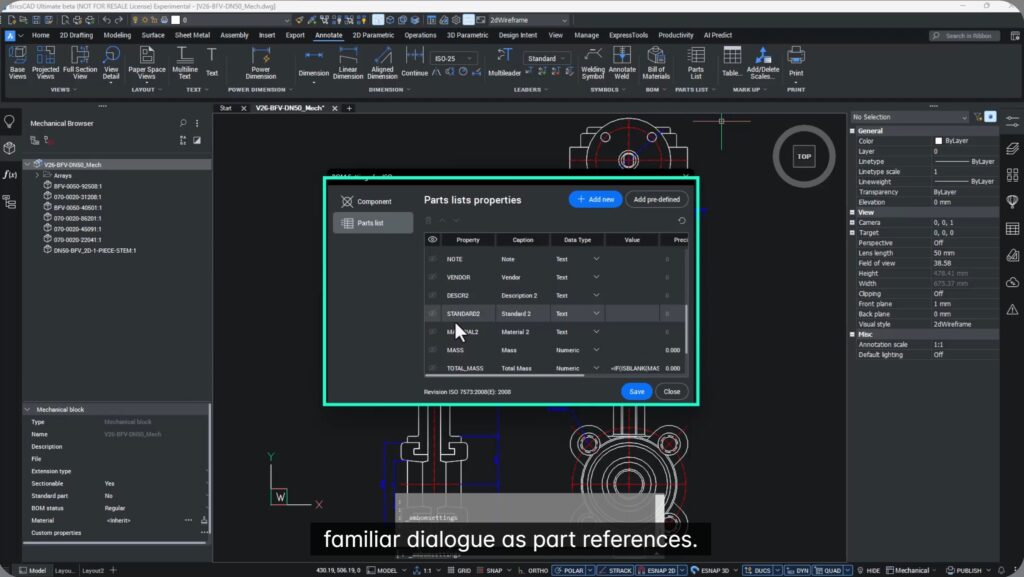
One-Command Part References
- Attach a part reference directly to the block
- Select from standard or custom fields
- Enter values once per part
All part references share the same structure, making the data immediately ready for a parts list.
Creating the Parts List
- Configure the list using AMBOMSETTINGS
- Use the same familiar fields as part references
- Generate the list with a single command
From the parts list, you can:
- adjust table formatting
- edit part properties
- place the list directly in the drawing
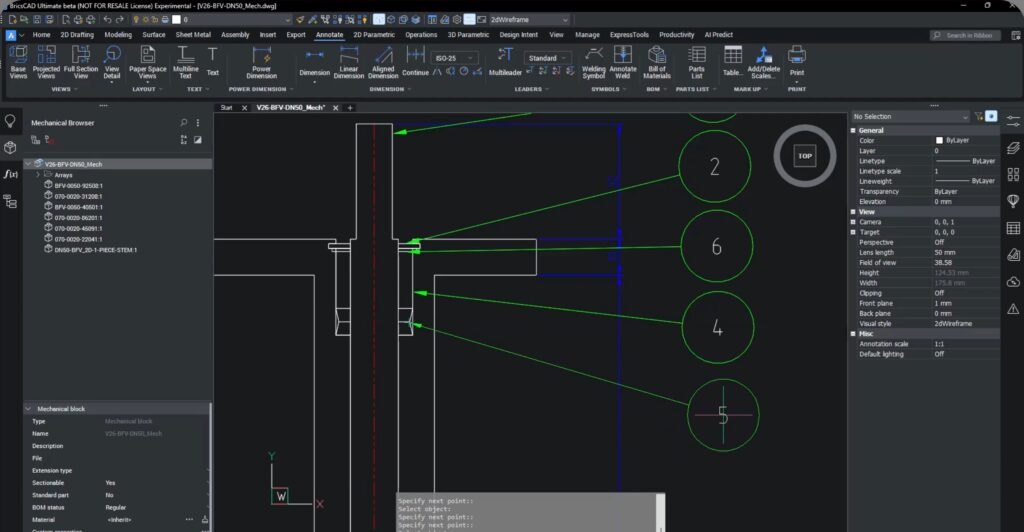
Balloons That Stay in Sync
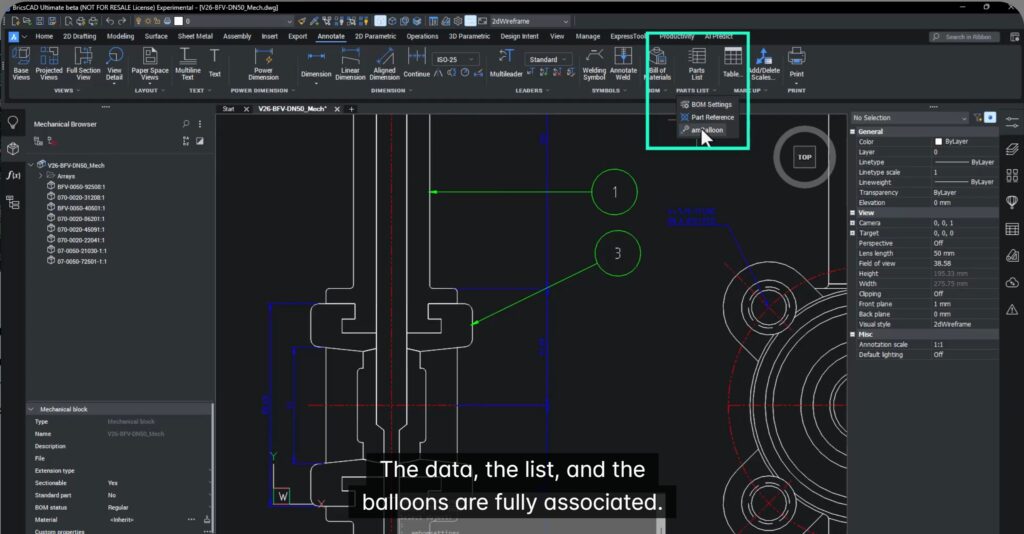
Using AMBALLOON:
- balloons are created directly from the parts list
- numbering is automatic
- balloons remain fully associative
If numbering changes, everything updates automatically—no manual corrections.
Adding New Parts: The Real Difference
In BricsCAD Pro, adding a new part means:
- opening the block editor again
- inserting attribute sets
- filling attribute values
- rerunning data extraction
- manually updating balloons
This is a repetitive, error-prone process.
In BricsCAD Mechanical:
- attach a new part reference
- fill in fields once
- the part appears automatically in the parts list
- balloons update instantly
No wizard. No rework.
New in BricsCAD Mechanical V26
BricsCAD Mechanical v26 introduces:
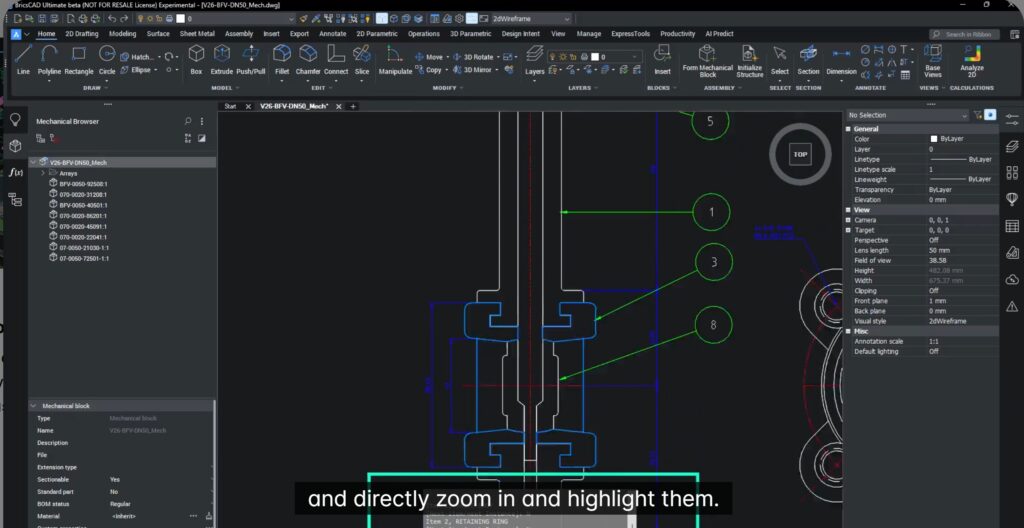
- selection of parts directly from the parts list
- automatic zoom and highlight of selected parts
- command-line navigation through assemblies
This makes working with large assemblies faster and more intuitive.
Measurable Results
In this real-world example:
- Over 50% faster overall workflow
- 70% fewer steps when adding new parts
- Fully associative data reduces errors and rework
This isn’t just about speed—it’s about scalability and accuracy as assemblies grow.
Key Takeaways
- BricsCAD Pro relies on manual, attribute-driven workflows
- BricsCAD Mechanical uses dedicated, associative tools
- Parts lists, references, and balloons stay synchronized
- New parts don’t create extra work
- Ideal for manufacturers working with 2D assemblies
The Logical Choice for Manufacturing
If you’re a manufacturer creating and maintaining 2D assemblies, BricsCAD Mechanical delivers faster documentation, higher accuracy, and far less manual effort than attribute-based workflows.
Try BricsCAD Mechanical and experience parts lists that scale with your assemblies—without scaling your workload.