
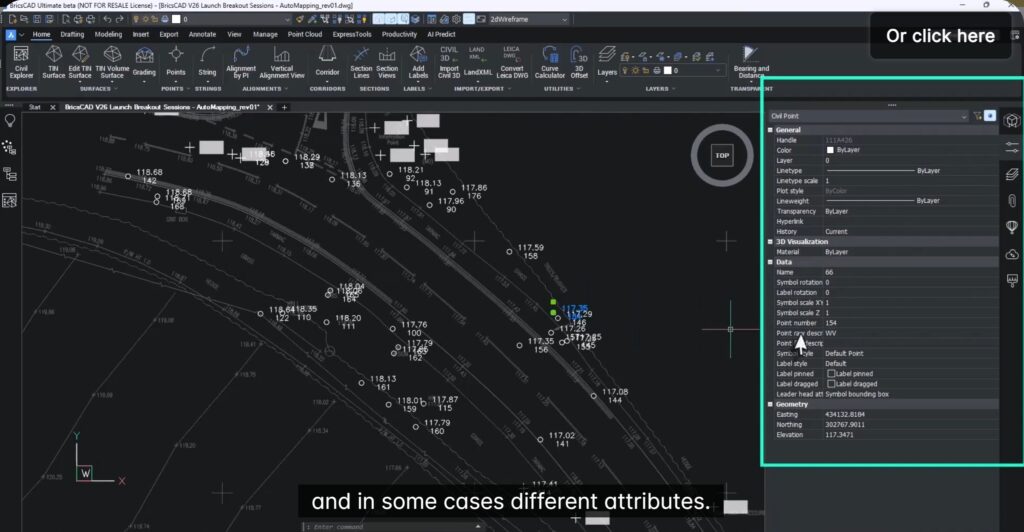
In this blog, we will see how to set up Auto mapping to manage civil points.
Managing large volumes of survey point data doesn’t have to be slow, repetitive, or error-prone.
With BricsCAD V26, Bricsys introduces Automapping—a powerful enhancement to the Civil Toolset that automatically styles, layers, and labels survey points based on their descriptions. The result! – Cleaner drawings, faster workflows, and consistent outputs across projects and teams.
What Is Automapping?
Automapping is a new feature in BricsCAD V26 that allows surveyors and civil engineers to automatically apply predefined rules to imported survey points.
Instead of manually assigning symbols, labels, and layers point-by-point, Automapping does it for you—instantly and accurately—based on point codes and attributes coming directly from the field.
Typical Workflow: From Raw Data to Structured Drawings
Step 1: Import Survey Data
Survey data is imported from a CSV file containing:
- Coordinates (Easting, Northing, Elevation)
- Point codes
- Optional attributes (e.g., tree spread, rotation angle)
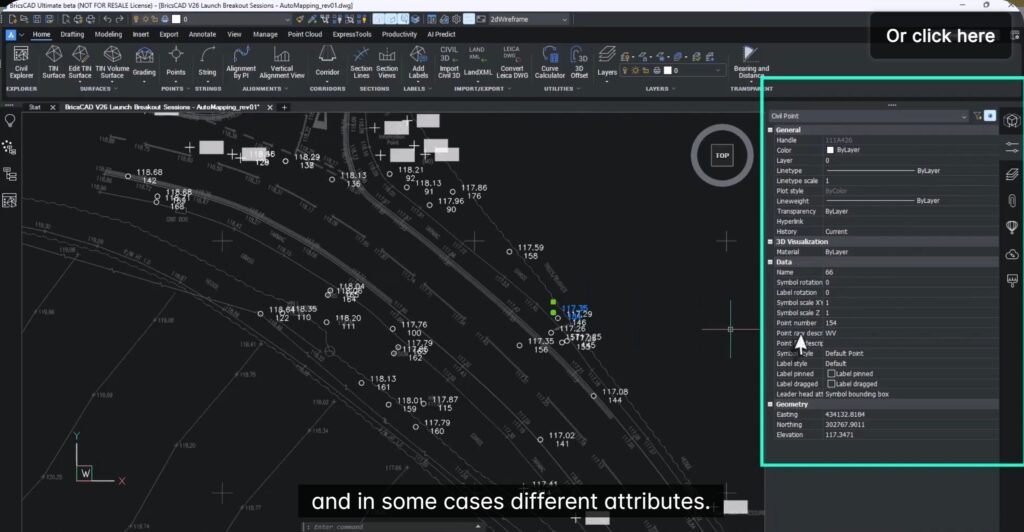
Step 2: Default Points Become Intelligent Data
Initially, all points appear as generic points. However, the drawing template already contains:
- Symbol styles
- Label styles
- Layer definitions for known survey codes
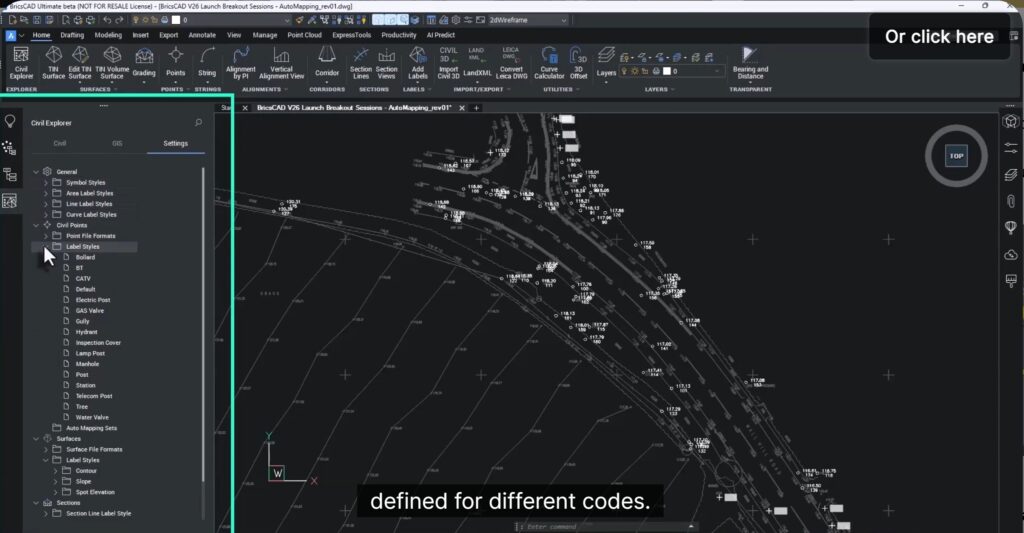
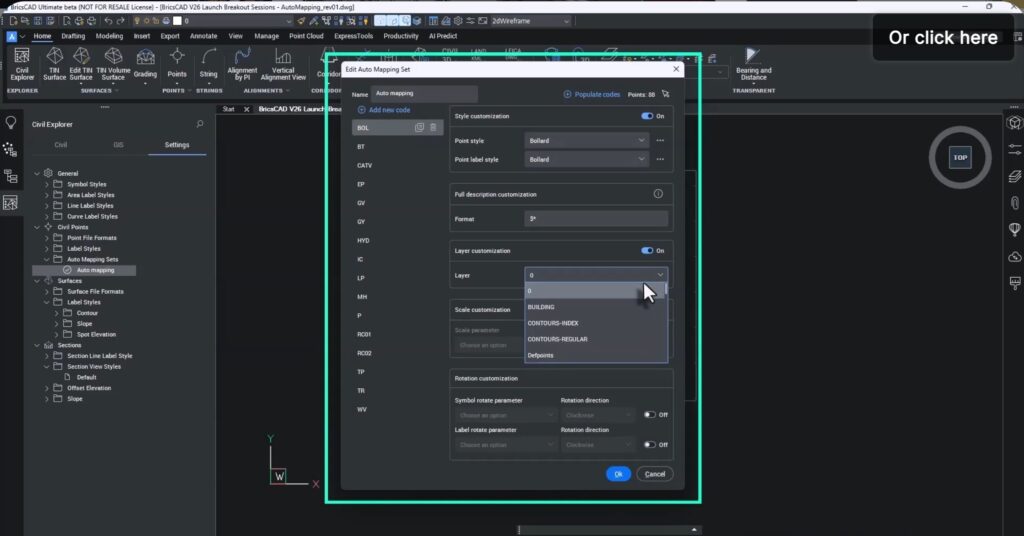
Step 3: Create an Automapping Set
By creating a new Automapping configuration, BricsCAD:
- Detects all unique point codes
- Displays them in a structured list
- Allows you to assign:
- Symbol style
- Label style
- Layer
Step 4: Apply Automapping (The Magic Moment)
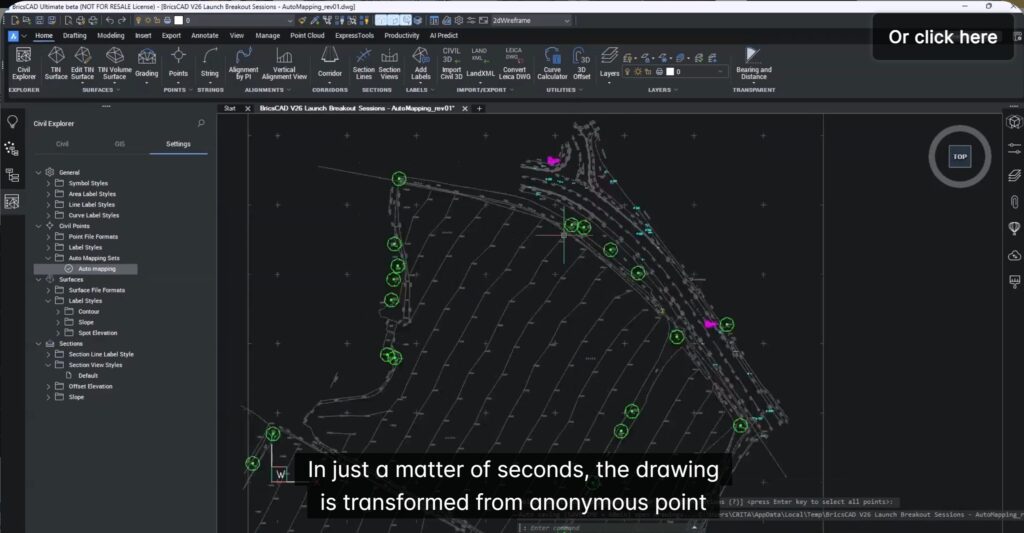
With one click, Automapping transforms the drawing:
- Points are styled correctly
- Labels are applied consistently
- Layers are assigned automatically
All in seconds, even for very large datasets.
Advanced Automapping Capabilities
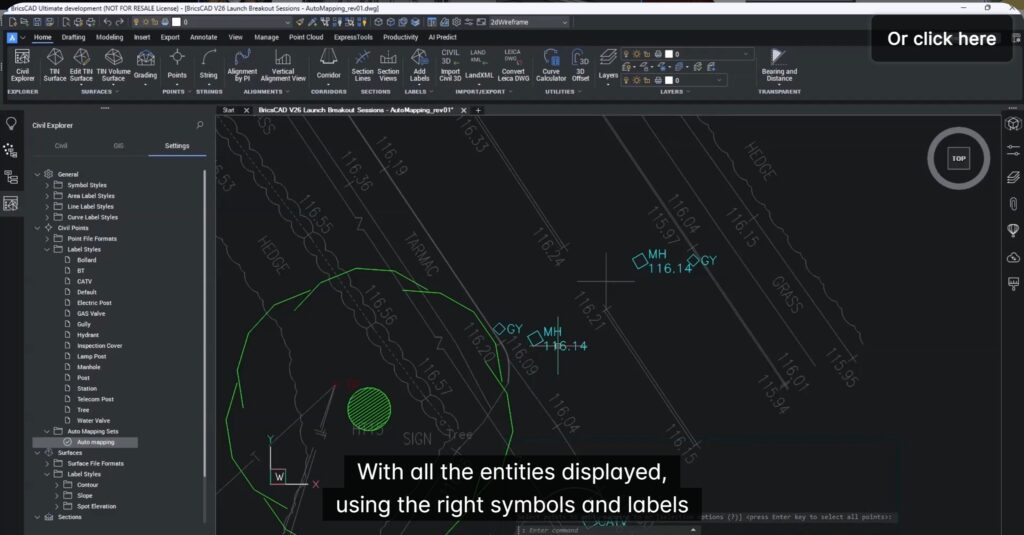
Automapping goes beyond basic styling and supports attribute-driven intelligence:
- Dynamic Scaling : Example: Tree symbols scale automatically based on a “spread” attribute captured in the field.
- Automatic Rotation : Example: Manholes rotate using an angle attribute to align with streets—improving realism and clarity.
Why Automapping Matters (Key Benefits)
- Consistency at Scale : Every point follows the same rules—whether you’re handling hundreds or hundreds of thousands of points.
- Massive Time Savings : No repetitive manual assignments. What used to take hours now takes minutes.
- Easy Updates : Modify styles or layers once in the Automapping set—no need to redo the entire drawing.
- Enterprise-Ready Standardization : Perfect for organizations that want consistent deliverables across teams and projects.
Who is this ideally suited for?
- Land Surveyors
- Survey Technicians
- Civil Engineers
- Infrastructure & Site Design Teams
Whether it’s a small survey job or a large civil infrastructure project, Automapping scales effortlessly.
Try It Yourself
The best way to experience Automapping is hands-on.
Download BricsCAD V26, explore the Civil Toolset, and see how Automapping can dramatically simplify your survey workflows.
If faster, smarter, and more reliable point data management sounds appealing—Automapping delivers exactly that.