
This week, we tell you how you can use the CP_REPBLK command to update your blocks with a new definition while retaining the same edited (moved) positions for the attributes.
Why do attribute positions move?
Blocks with attributes are common. However, their attribute positions, as originally designed, may often need to be moved in order to prevent cluttering in the drawing. They are often moved manually to locations where they look pretty and offer readability in the drawing.
If you now need to update the block definition, you can do it easily using the BEDIT command. However, to apply the changes to the block and make it visible, you would normally use the BATTMAN command and the ATTSYNC option.
The
ATTSYNClimitation – the problem to solve
When you use the ATTSYMC option in the BATTMAN command, the repositioned attributes all revert back to their original locations.
This is not what any user would want. After all, you have painstakingly moved them all to preferred locations, only to realize that ATTSYNC has undone all that effort and put them back to their default positions.
CP_REPBLKovercomes this limitation smartly!
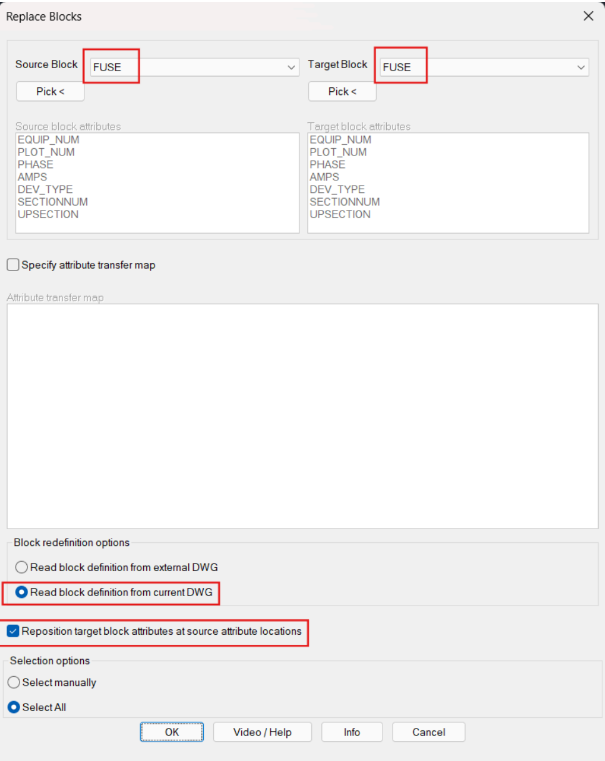
he CP_REPBLK command (CADPower -> Blocks -> Block-related -> Replace Block) can be used here not only to update the block definition but you can also ensure that the moved attributes retain their
psotiions and not revert tothier original locations.
This is a big difference and improvement over how the ATTSYNC command works both in AutoCAD and BricsCAD.
It is a surprise that both AutoCAD and BricsCAD have not fixed this issue. Until then, you can use CADPower to get your job done.
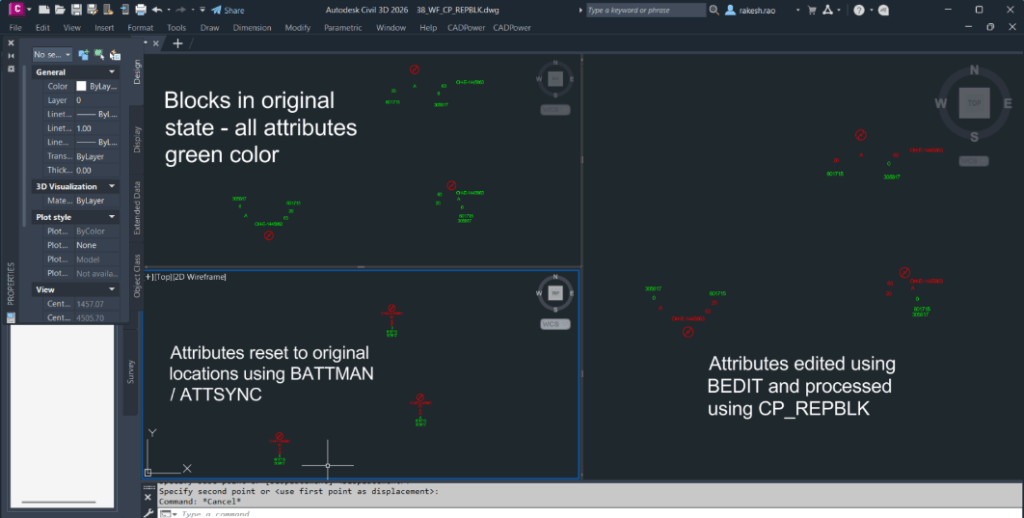
Image courtesy: Actual CADPower user using AutoCAD 2026