
In this blog, let’s talk about what’s new in V26 for BricsCAD Lite and Pro for 2D drafting. BricsCAD V26.1 brings a powerful set of refinements and productivity upgrades for 2D drafting users, especially for those working with Lite and Pro. Some of the most important new and enhanced tools that directly impact everyday drafting speed, accuracy, and control are showcased here.
Here’s an overview of what’s new — and why it matters to you.
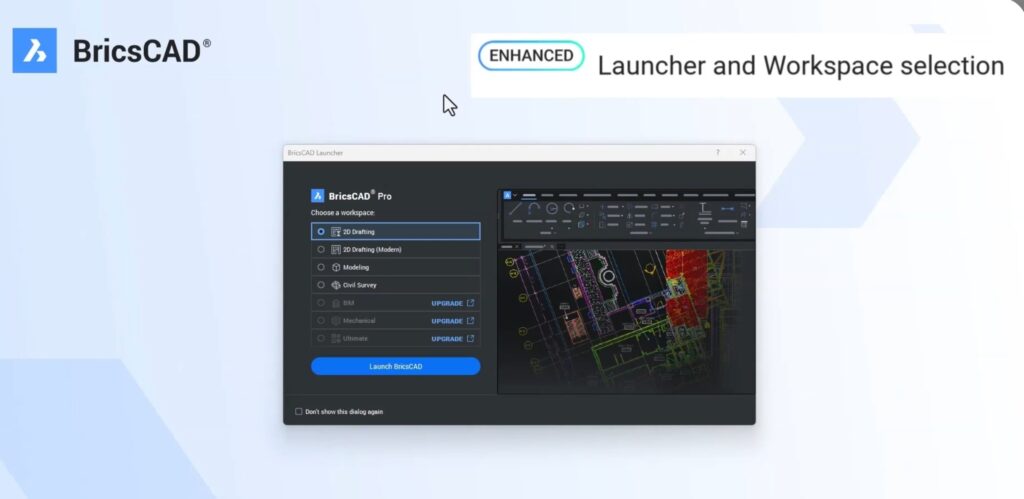
A Smarter Start with the New BricsCAD Launcher
From the moment you launch BricsCAD V26, you’ll notice a completely updated startup experience. The interface is cleaner, more focused, and designed for faster access to the right workspace.
Key Workspace Types:
- 2D Drafting – Classic ribbon from V25
- 2D Drafting Modern – Updated modern ribbon
- Modeling – Optimized for 3D workflows
- Civil Survey – Tailored for surveying tools
- Toolbars – Classic – Toolbar-based layout without a ribbon
Each workspace dynamically updates the ribbon for the selected workflow. Isn’t that cool?
If there is one trend or DNA that I can highlight, it is that BricsCAD is trying to fit into your skin, and offer choices that are intuitively what you would expect to see. Modern, easy, familiar and context-aware.
Redesigned “Look From” Widget – Now in Paper Space Too
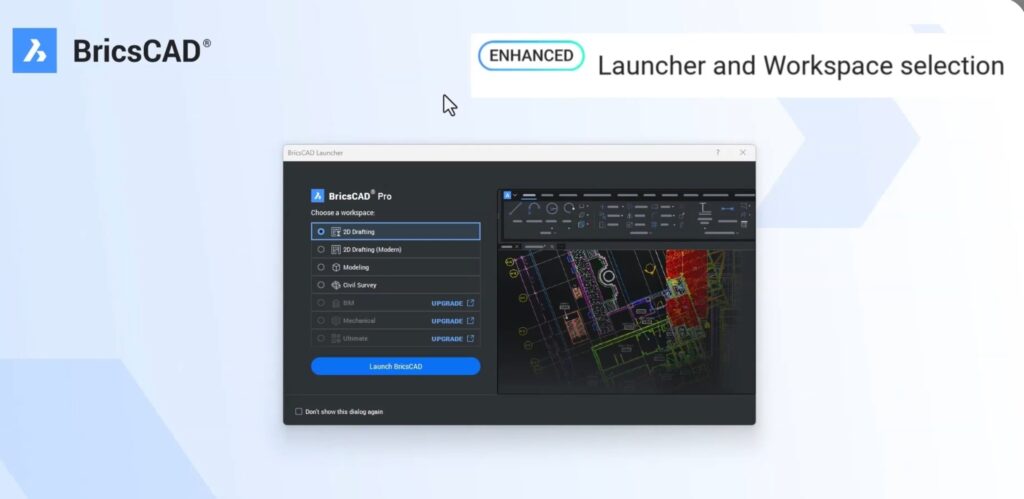
The Look From widget gets a modern visual refresh across Windows and Mac, with:
- Better visual feedback
- Dynamic repositioning
- Faster access to standard views
You can:
- Hover to see direction arrows
- Drag to freely rotate
- Click faces or corners to snap to preset views
The big win?
👉 It now works inside Paper Space viewports as well.
And yes — the classic version is still available via a system variable!
QT-Based Status Bar Now Default
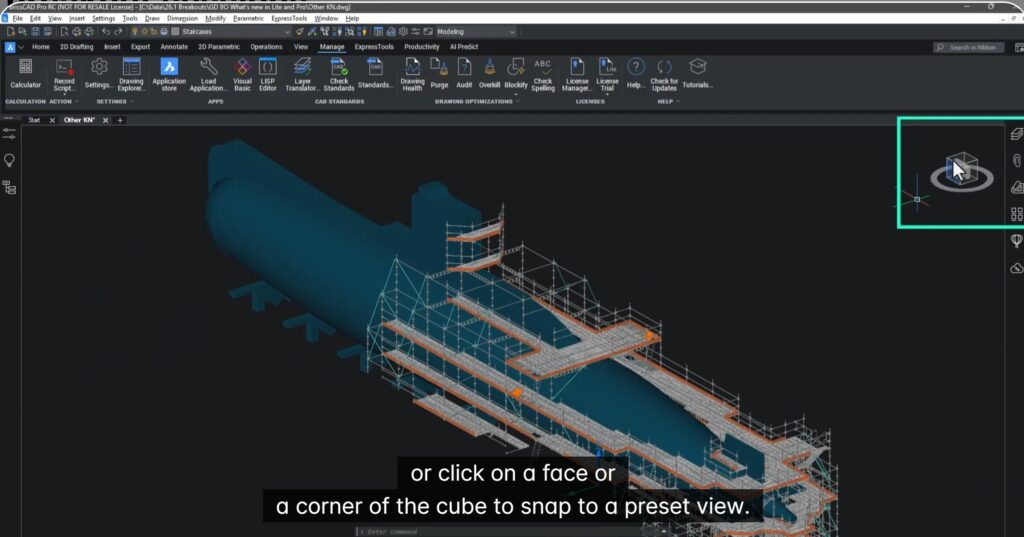
The QT-based status bar introduced in V25 is now the default in V26.1, providing:
- A more modern UI
- Better feedback
- A cleaner working experience
Prefer the old one? You can still switch back using a system variable!
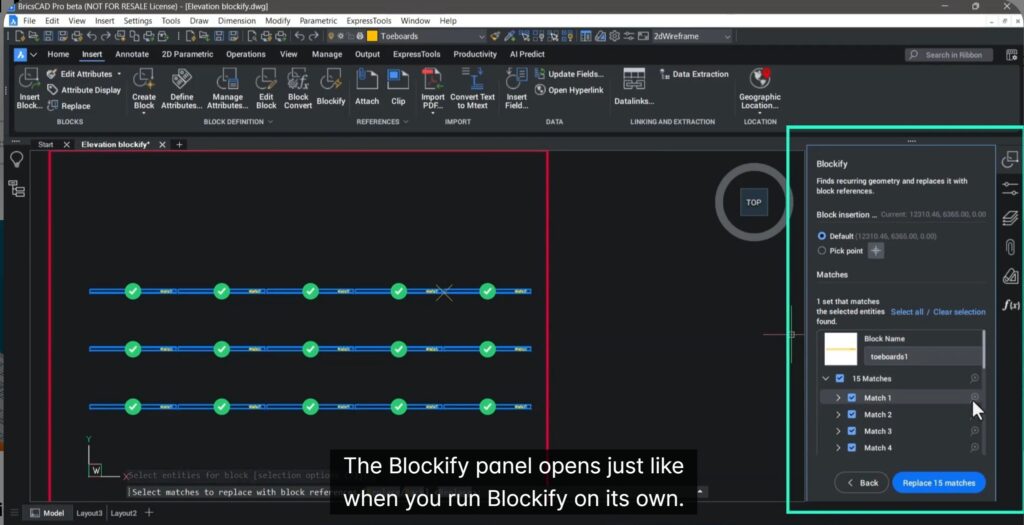
Blockify is Now Built Directly into “Create Block”
This is a big productivity upgrade.
Previously, Blockify was a separate process. Now, when you use Create Block, you can:
- Enable Background Scan
- Automatically detect matching block definitions
- Prevent duplicate block creation
- Directly launch Blockify from within Create Block
- Review and convert one, many, or all matching entities into blocks
This is a massive win for:
- Scaffold drawings (or similar)
- Repetitive detailing
- Manufacturing layouts
- Any block-heavy workflow
Real-Time Command Previews for TRIM & EXTEND
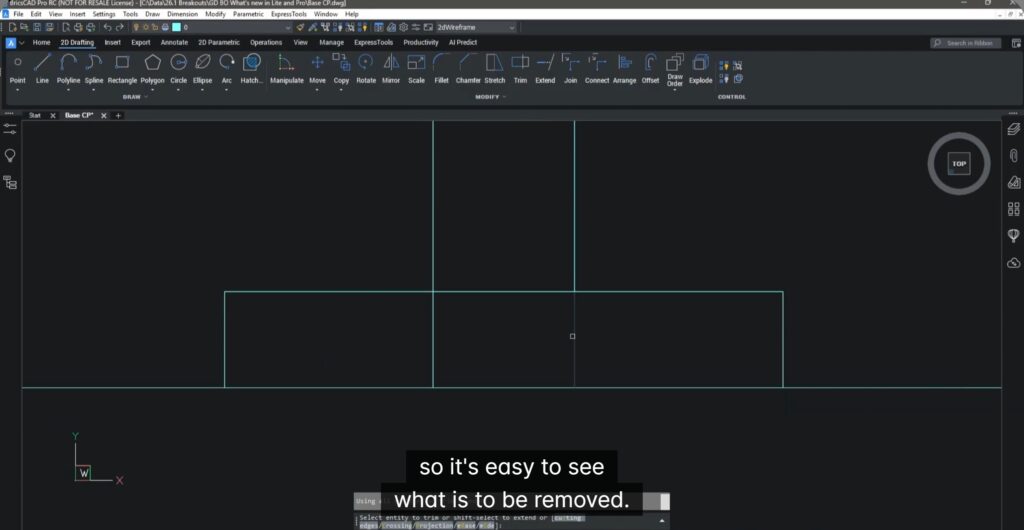
BricsCAD V26.1 introduces a new command preview system variable that enables real-time previews for:
- TRIM
- EXTEND
How it works:
- Hover over geometry → the trimmed portion highlights instantly
- Hold Shift to preview extensions
- See the exact result before clicking
Result:
✅ Fewer mistakes
✅ Faster edits
✅ Less undo, more confidence
Faster, Smarter QuickSelect (QSELECT)
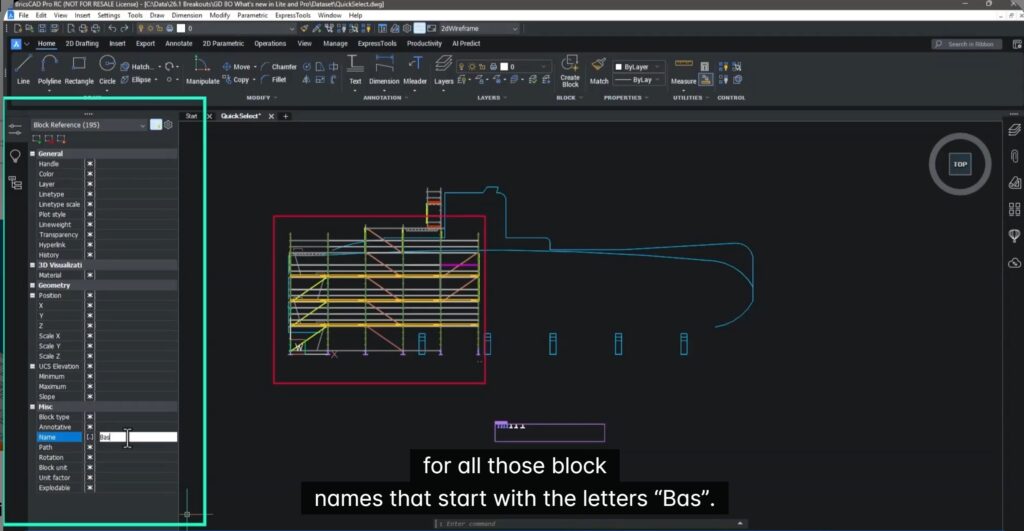
QuickSelect now supports:
- Multiple selections without closing the dialog
- Wildcard filtering on text properties
Example: You can now filter block names using wildcards like:
- Bas* to instantly find all blocks starting with “Bas”
Perfect for:
- Layer management
- Block cleanups
- Batch edits
Dynamic Measurements with MEASUREGEOM
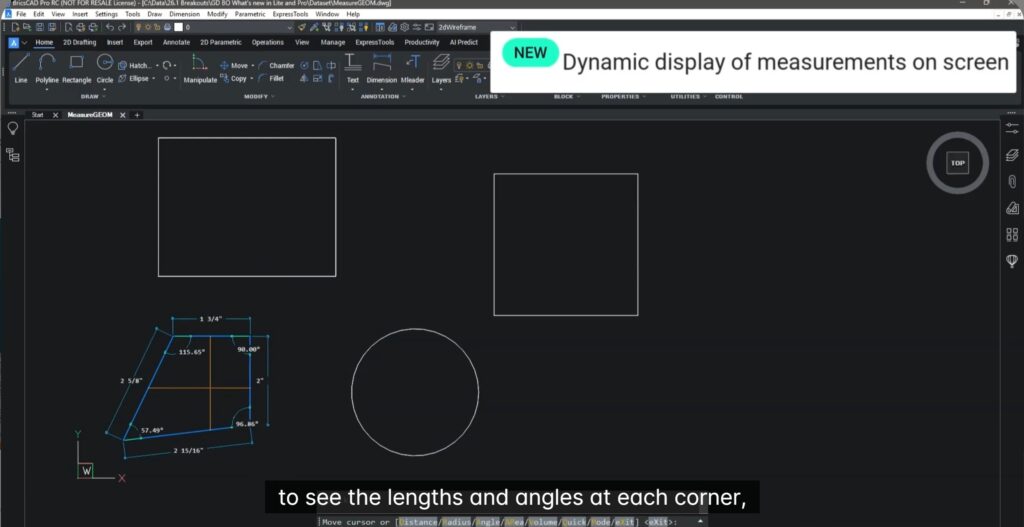
MEASUREGEOM is now more visual and interactive than ever.
It dynamically displays:
- Distances
- Angles
- Radii
- Areas
As you move your cursor:
- Measurements appear directly on screen
- Full-screen cursor mode improves visibility
- Works on single or multiple entities
- Total area can be calculated across shapes
Even better — you can now:
- Calculate volumes from 3D objects
- Assign height to 2D shapes to compute volume
- Output mass properties to command line or text files
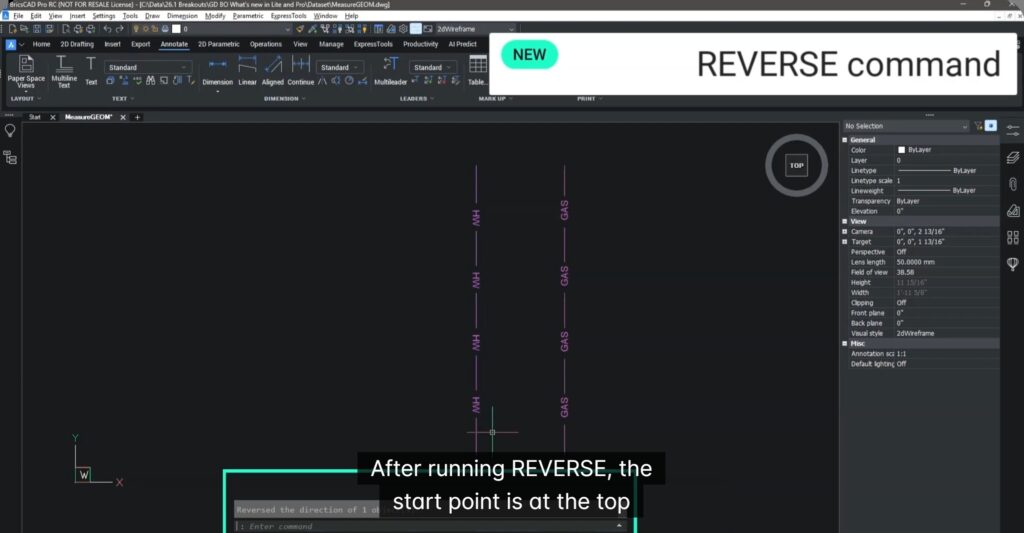
New REVERSE Command for Direction Control
The new REVERSE command lets you flip the direction of:
- Lines
- Polylines
- Splines
- Helixes
This is especially useful when:
- Working with text orientation
- Toolpaths
- CNC prep
- Direction-sensitive geometry
It instantly swaps start and end points — clean and simple.
What This Means for You
BricsCAD V26.1 delivers real, practical improvements to daily 2D drafting work:
- Faster block creation & management
- Real-time visual feedback for edits
- Smarter filtering and selection
- Live measurement & volume calculations
- Cleaner workspace control
In short:
👉 Less clicking. Fewer mistakes. Faster delivery.
Want to Explore More?
To dive deeper into BricsCAD V26.1:
- Watch the full video by clicking on the video link given below
- Or reach out to us for a demo appointment!
Download BricsCAD V26 to know more.